Deskgram 2 features — Telegram messaging, parsing and inviting
Deskgram 2 modules for Windows and macOS: messaging, parsing, inviting and account management. Explore workflows, guides and limitations.
MODULES
Tools for messaging, parsing, inviting and managing Telegram accounts. Choose a workflow, review its settings and explore the demo before starting.
Invites
Automatic search and attraction of target audience to your channels and groups
Telegram inviting softwareMessaging
Send messages to chats and DMs with configurable text, pauses and task settings.
Telegram group messaging softwareParsing
Collect members of accessible chats and comment authors within Telegram access permissions
Telegram audience parserAccount settings
Proxies, pauses and task settings to control activity. Protection from bans is not guaranteed.
Many accounts
Manage multiple accounts and their tasks from one interface
AI modules
Comments and chats written by AI from the post itself, not from one template.
AI comments for Telegram postsStep-by-step guides
Workflow and task parameter descriptions. Setup time depends on the module and account preparation.
Built-in tooltips
Interface hints help explain parameters. Review the values and task results in the log.
Ready strategies
Examples for messaging, parsing and inviting. Adapt them to your accounts and Telegram restrictions.
Three setup examples
These training settings show where to verify a feature. No Telegram tasks or webhook deliveries were run for these examples.
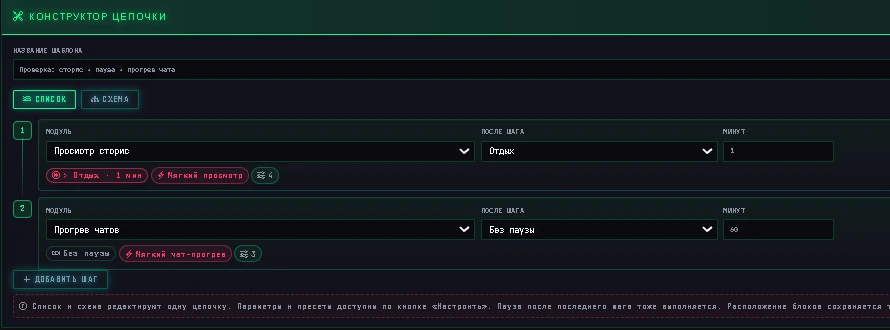
A chain with a pause
The screenshot shows story viewing, a 1-minute pause, then chat warm-up. Each step has its own settings; check the next run, time zone and that the app will remain open.
Completion notification
Select task.completed and an HTTPS receiver in webhook settings. After a test delivery, match the HTTP response with its log entry. Handle retries using X-Deskgram-Delivery-Id.
event: task.completed X-Deskgram-Delivery-Id: <delivery-id>
This is an event/header example, not a delivery confirmation.
Webhooks and API reference GuideConnecting an AI agent
Enable MCP and give the agent the local URL and your token. After initialization, request tools/list and start with deskgram_health. Creating tasks requires separate permissions.
{"jsonrpc":"2.0","id":1,"method":"tools/call","params":{"name":"deskgram_health","arguments":{}}}
Example tool request after MCP initialization; no token or results are published.
MCP connection Guide