Guide 8.3 - Task Manager: Your Deskgram 2 Control Center
The Task Manager is the operational center of Deskgram 2. Open it through Task Manager or Tasks in the menu to monitor and control everything currently running in the application.
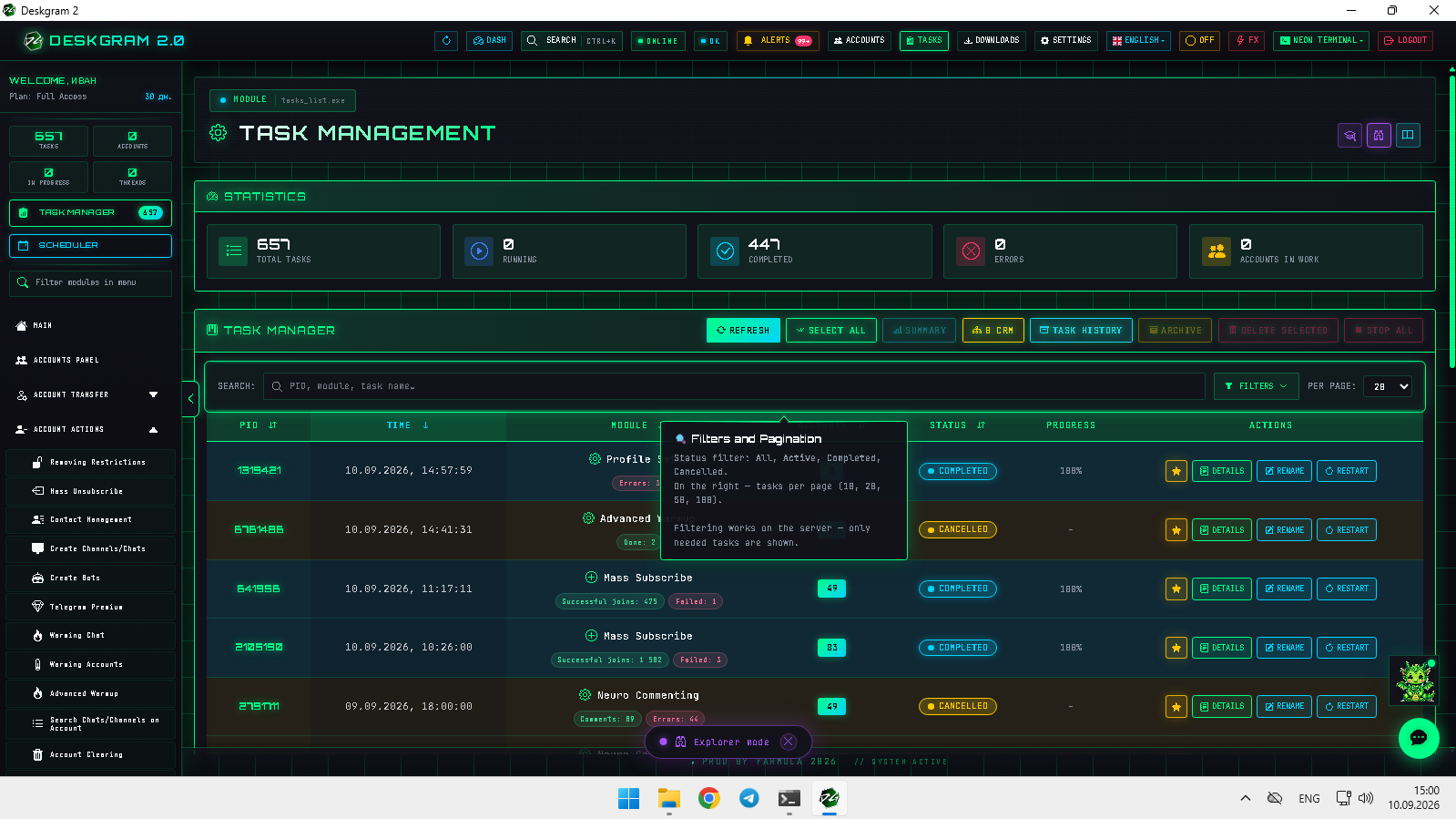
1. Manage the task list
The list contains active, completed, and cancelled tasks.
- Filters: show only the states you need right now.
- Favorites: click the star next to a frequently used task to keep it easy to find.
- Bulk actions: select several tasks to stop, delete, or archive them together.
- Rename: give tasks descriptive names so their purpose remains clear later.
2. Open task details and analyze results
Click Details to open the full task view.
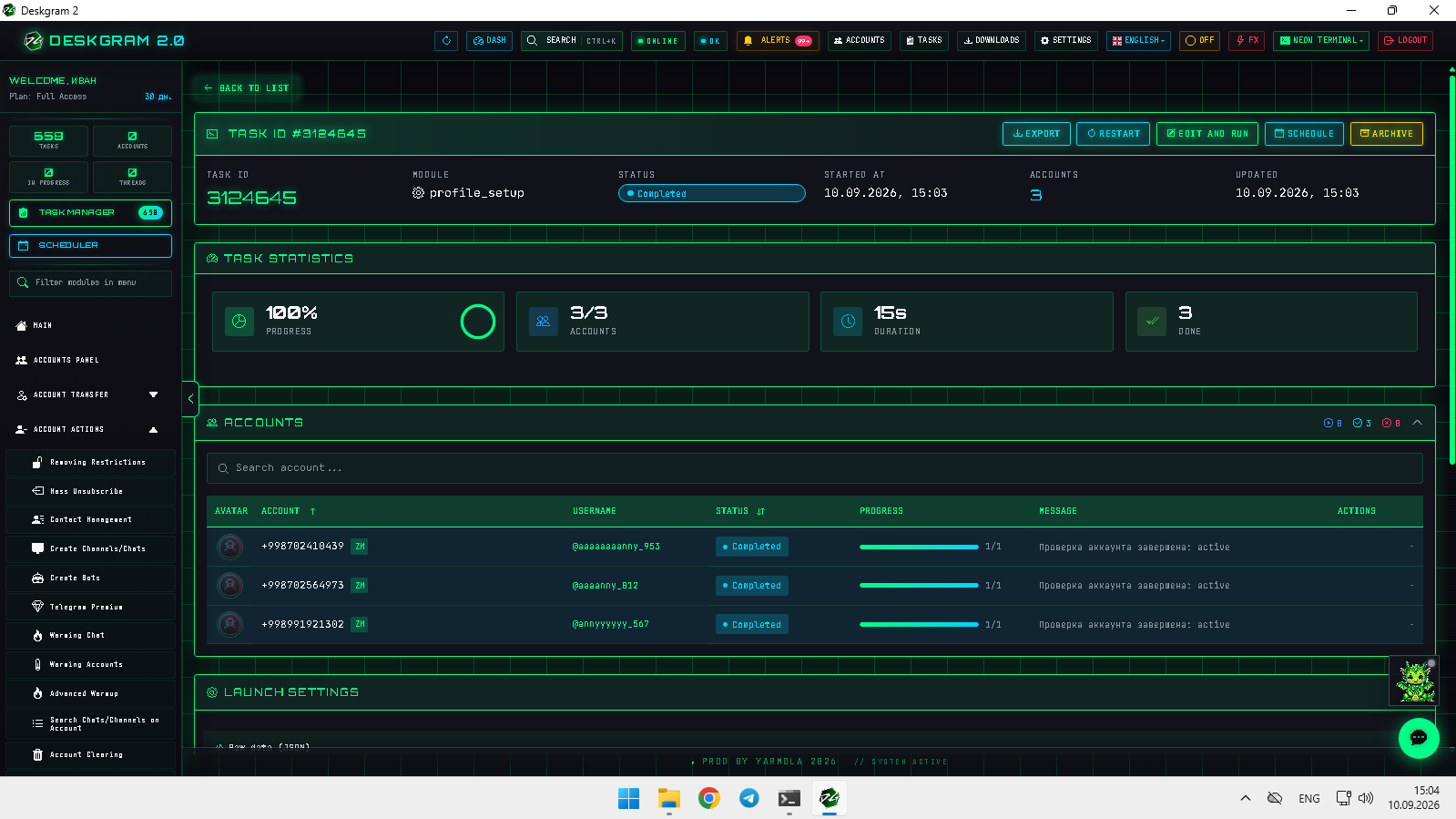
- Dashboard: shows progress and execution time. Metrics vary by module: messaging tasks may show sent messages and responses; parsers may show collected users or chats.
- Accounts: lists every profile assigned to the task, its status, and its individual progress.
- Logs: the first place to look for errors, restrictions, and failed operations.
- Results: displays downloadable outputs and module-specific summaries when available.
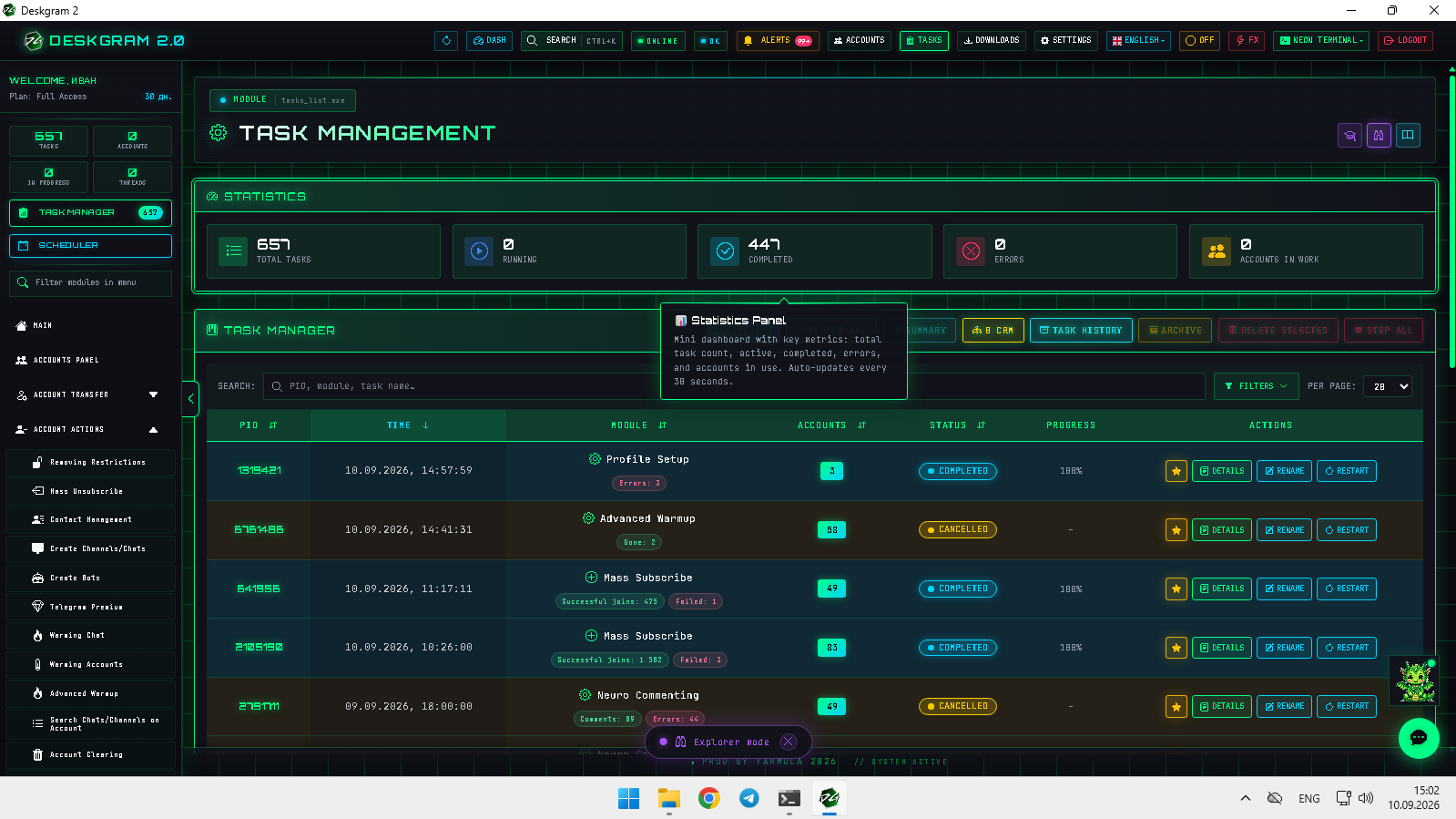
3. Edit, restart, and schedule tasks
- Edit and run: open a completed or cancelled task with its previous settings, adjust the inputs, and launch it again.
- Scheduler: configure a task to run automatically on a recurring time pattern, such as a daily account-maintenance flow.
Important: scheduled tasks require the computer and Deskgram 2 application to be running at the planned time.