This guide explains how to configure a conversation tree in Deskgram 2's branching autoresponder. For a feature overview, open the module page. Settings were checked against the implementation on 24 October 2026.
The module replies to incoming private messages on selected accounts. It tracks the current conversation step, selects an available response and sends a prepared message. Start with a short tree and test it from another account you own.
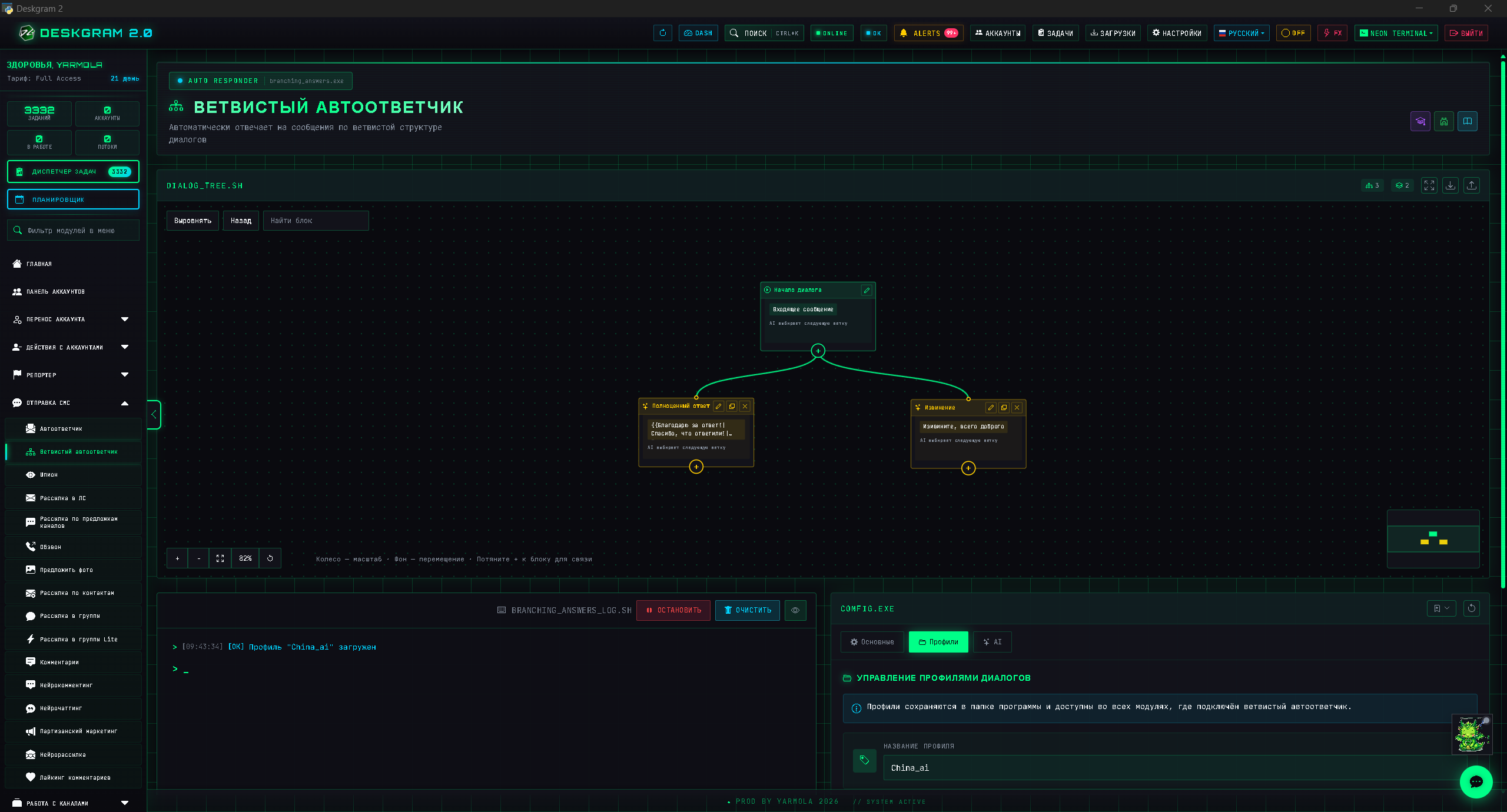
Choose a conversation mode
In CONFIG.EXE → General, choose between two modes:
| Mode | How the next answer is selected |
|---|---|
| Branching | Child-node triggers or the current node's AI decision; a default branch can handle no-match cases |
| Sequential | Each new incoming message advances to the next answer in a chain; triggers and AI decision are not used |
Sequential mode does not send the whole chain when the task starts. Each next step requires another incoming message. Keep a single next child at each step; use branching when a question can lead to several different answers.
Conversation state belongs to the pair “selected account and sender”. One person's conversations with two of your accounts are not one shared progression. State is kept by the running task. Saving a profile stores the tree settings, not a guaranteed restoration of conversation positions after restarting.
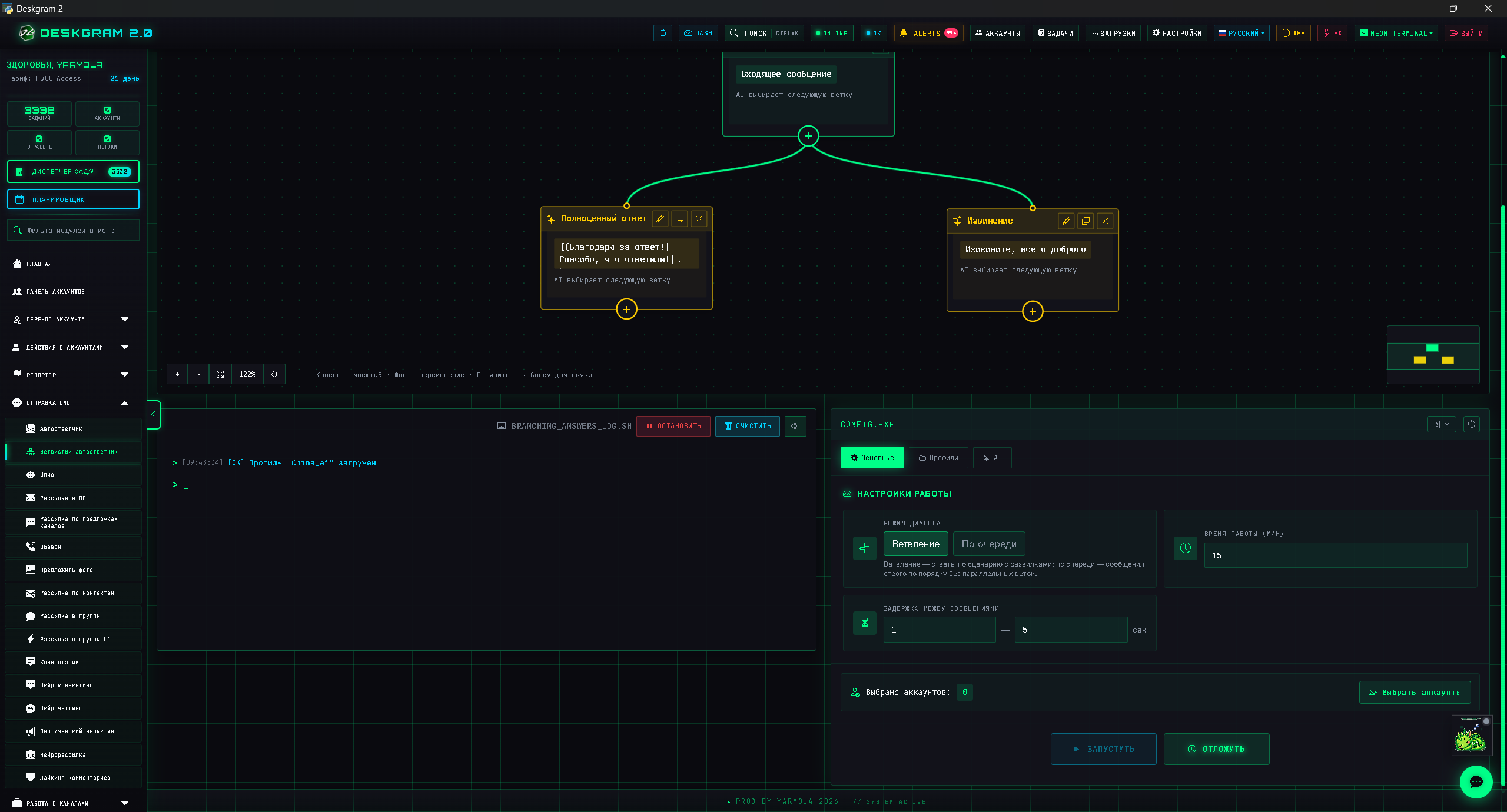
Build the tree on the canvas
The starting node represents an incoming message. Use + to add children such as “Price” and “Installation”. The pencil opens node settings. Use names that make transitions recognizable in the log.
Move nodes by dragging, zoom with the mouse wheel and pan by dragging the background. To connect an existing node, drag + to it. Align arranges the tree, Back undoes the latest canvas change, and Find node locates a node. The expand button opens a larger workspace.
Do not start with dozens of branches. First test the initial choice, one continuation and conversation completion; then extend the working scenario. After changing connections, confirm the node remains a child of the step where it should be considered.
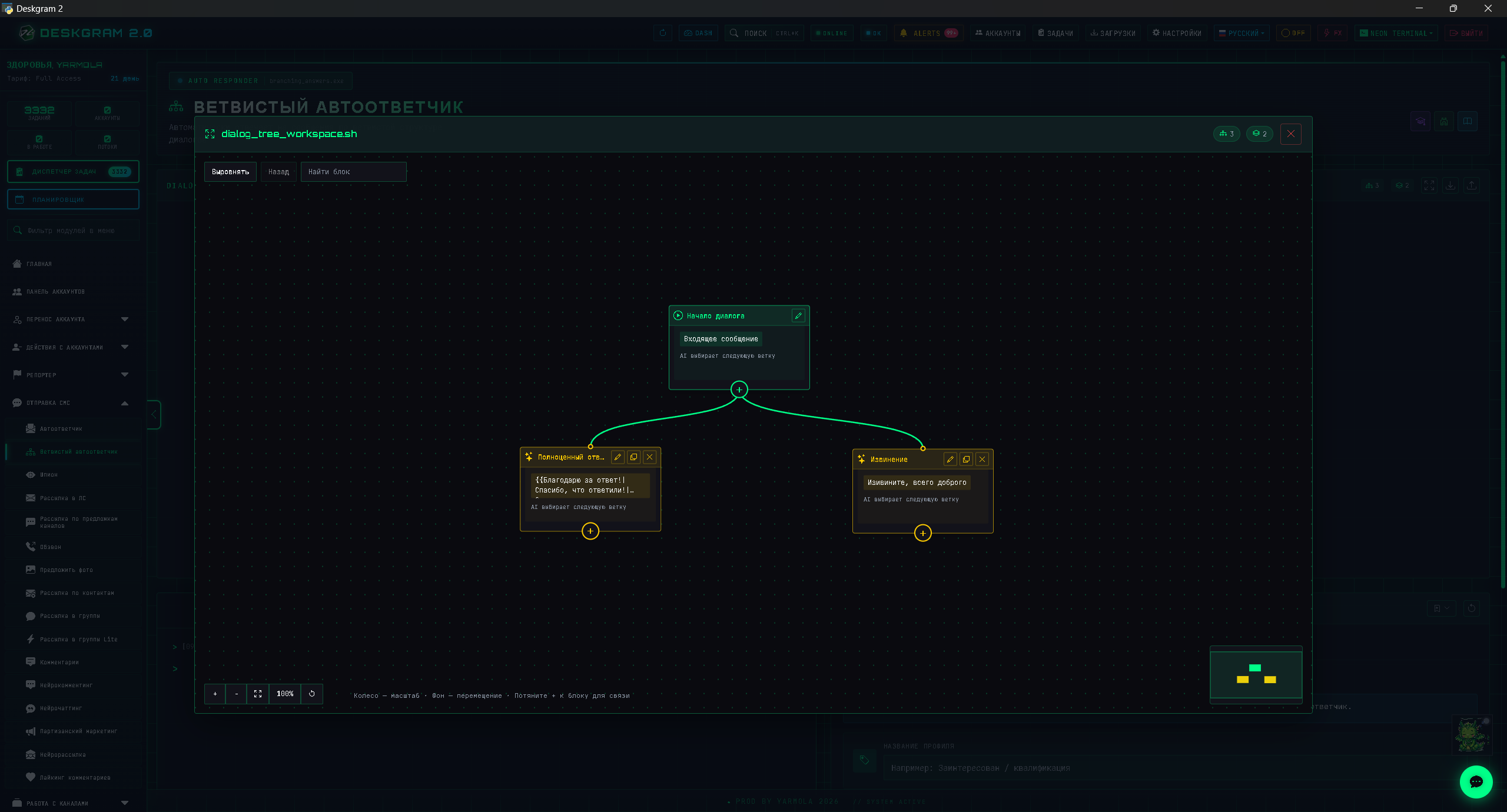
Configure triggers and messages
For the first test, disable AI decision. In a child node's General tab, enter its triggers, separated by commas or line breaks:
- “Price”:
price, cost, pricing. - “Installation”:
installation, install.
Ordinary triggers are matched without case sensitivity and with word boundaries. Only the current step's available children are checked. The same trigger can mean different answers in different parts of the tree because the sender is already at a different step. If several neighboring children match, their checking order matters: refine overlapping phrases and test both cases.
In the Message tab, choose a response format:
- Text: enter a prepared answer.
{Hello|Good afternoon}selects one wording option when sending. - Complex message: choose Save and configure complex message, then use the separate text-and-attachment editor.
Inspect every response before starting. Choosing a branch and defining its outgoing message are separate settings. Correct branch selection does not repair a mistake in that node's text or attachment.
Configure transitions
Normal transition
After a successful send, the selected node becomes the sender's current step. The next message is checked against that node's children. A node without children does not automatically mean “finish and return to the start”; use the explicit completion setting for that behavior.
End conversation
After the response is successfully sent, state returns to the beginning of the tree. A subsequent incoming request can start the scenario again. Children below a terminating node are not used. A failed send should not be treated as a successfully completed step.
Default branch
In branching mode, one parent can have one default child. It is used when ordinary triggers do not match; its own triggers do not participate in default selection. Assigning another default on the same level replaces the previous choice in the interface so there is only one.
Use it for a prepared clarification, for example: “Please specify: do you need pricing or help with installation?” This is a message you configure, not an AI-generated reply.
Stay on the current step
This is useful for clarification: the selected child's answer is sent, but the conversation stays at the previous step. On the next incoming message, the previous parent's alternative branches are available again. The clarification node's own children do not become the next level.
This option applies to branching and should not be combined with ending the conversation. In sequential mode, use chain progression rather than relying on these branch-selection rules.
Enable AI decision when needed
AI decision chooses an existing child branch by meaning. It does not automatically rewrite the prepared outgoing answer.
Enable AI in the module settings and select a provider and model. Then enable AI decision on the node where the next branch should be chosen. At the starting node this selects the first branch; on other nodes it selects a continuation after the response already sent.
Example instruction: “Use Price for questions about cost and plans. Use Installation for questions about downloading and launching the program. If neither fits, do not choose a random branch.” Include conversation history adds available recent context; do not assume that the entire conversation is sent to the model.
AI is used only when enabled both for the module and for the current node. In that case, triggers are not a mandatory prefilter. If AI is disabled at either level, ordinary triggers and the default branch are used. Sequential mode does not use AI decision for transitions.
Distinguish a no-match result from a technical failure. ainomatch or no_candidates can select the default branch. Provider errors, empty model output or invalid responses do not automatically fall back to triggers or the default branch. Inspect the reason recorded in the log.
Provider connection is covered in the AI component guide. Check model availability, credentials, cost and provider responses separately.
Set duration and delay
On the General tab, set task duration in minutes. 0 means no limit from this timer. Message delay is a range in seconds before sending a response; the lower bound must not exceed the upper bound.
The delay does not imply that the account shows a “typing” status. A new message from the same sender while a previous answer is being prepared may be skipped, with a log entry. The module does not promise to queue every such message. During testing, send one message at a time and wait for the answer.
Check that selected accounts are available and that your module access limits permit the task. An account occupied by another task is not ready for a new run merely because it appears in the selector.
Process older messages when required
Advanced settings include Reply to old messages and Do not reply to messages older than this date. This is a separate scan at task startup, not continuous loading of all historical messages.
An eligible private conversation must have unread messages, and its latest message must be incoming, contain nonempty text and meet the selected lower date boundary. The module checks the latest message in each conversation, not every unread message one by one. If your account sent the latest message, that conversation is not eligible.
The program checks eligibility again before replying. New activity or a different latest message may cancel handling of an older request that was found. Verify the date boundary using a test conversation.
Without this option, test fresh messages received after startup. An old conversation already marked read is not a valid test of the unread-message scan.
Exclude conversations using words in history
Chat word filtering provides exclusion words and a history depth from 1 to 100 messages. Each word has its own whole-word and case-sensitivity settings.
The check uses available recent history, including incoming and outgoing messages. Forwarded text and available author names or titles may also participate. This differs from response triggers, which choose an answer from the current message.
When an exclusion matches, the module sends no response and chooses no transition. If history cannot be fetched, it skips the response and logs a warning rather than treating the filter as passed.
Hypothetical example: exclude operator to avoid automatically answering conversations where someone recently requested a staff member. With a depth of 10, a request outside the last ten messages does not participate. Test case sensitivity, whole-word matching and substring matching separately.
Save a profile
On the Profiles tab, enter a name and select Save profile. To restore it, select it in the list and choose Load profile. Import JSON loads a scenario from a file.
After loading or importing, inspect mode, tree, texts, AI, filters, duration and delay. In particular, recheck zero values when using an unlimited timer. A profile is not an archive of actual incoming messages.
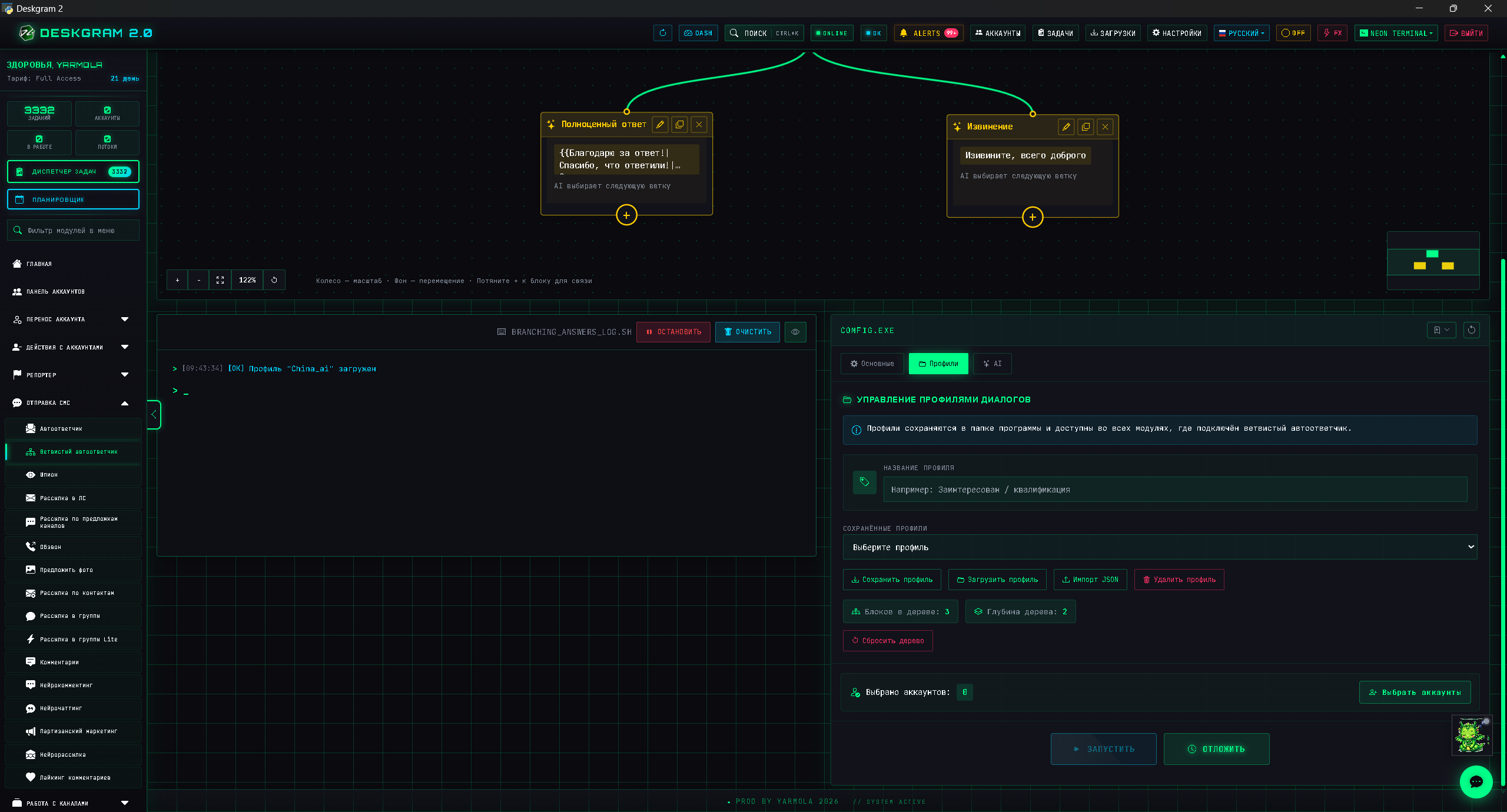
Profiles are stored in the program folder. They can also be selected by embedded branching autoresponders in modules that provide that component. See the autoresponder component guide for connection details.
Delete profile removes a saved scenario; Reset tree changes the current tree. Save a version you need before either action.
Test before a working run
- Select one connected, available test account.
- Inspect the tree, mode, messages and settings. Save the profile.
- Select Start; Defer schedules a later start.
- From another account you own, send a new private message containing “price”. Wait for the expected answer.
- Test “installation” from the initial state, and an unrelated message for the default branch.
- Follow a continuation, clarification that preserves the current step, and an ending that returns to the start.
- Separately test AI, exclusions and older unread messages if you intend to use them.
- Compare responses with the log. Change one setting at a time so its effect is clear.
Troubleshooting
| Symptom | Check |
|---|---|
| No response to a fresh message | Account, connectivity, duration, private incoming message after startup, exclusions |
| Older conversation skipped | Option enabled, unread messages, latest message incoming with text, date eligible, no newer activity |
| Wrong branch selected | Current step, neighboring trigger order, AI settings |
| No continuation | Child exists, no ending enabled, next incoming message received for sequential mode |
| Clarification repeats | Stay-on-step keeps the previous alternatives available |
| Default did not handle an AI error | It is not a technical-error fallback; inspect the log |
| History cannot load | Filter warning and connectivity; response is skipped on a failed check |
| Message skipped during delay | Wait for the previous response and inspect the waiting log entry |
This scenario does not handle group/channel messages, messages from bots, your own outgoing messages or ineligible older conversations. Check Telegram and AI failures by their actual log entries. A correctly built tree does not guarantee availability of an external service.
Related pages
All language versions use these Russian screenshots because the module is not fully localized. They illustrate the main operations; additional settings in your version may differ.