Telegram Neuro Commenting in Deskgram 2
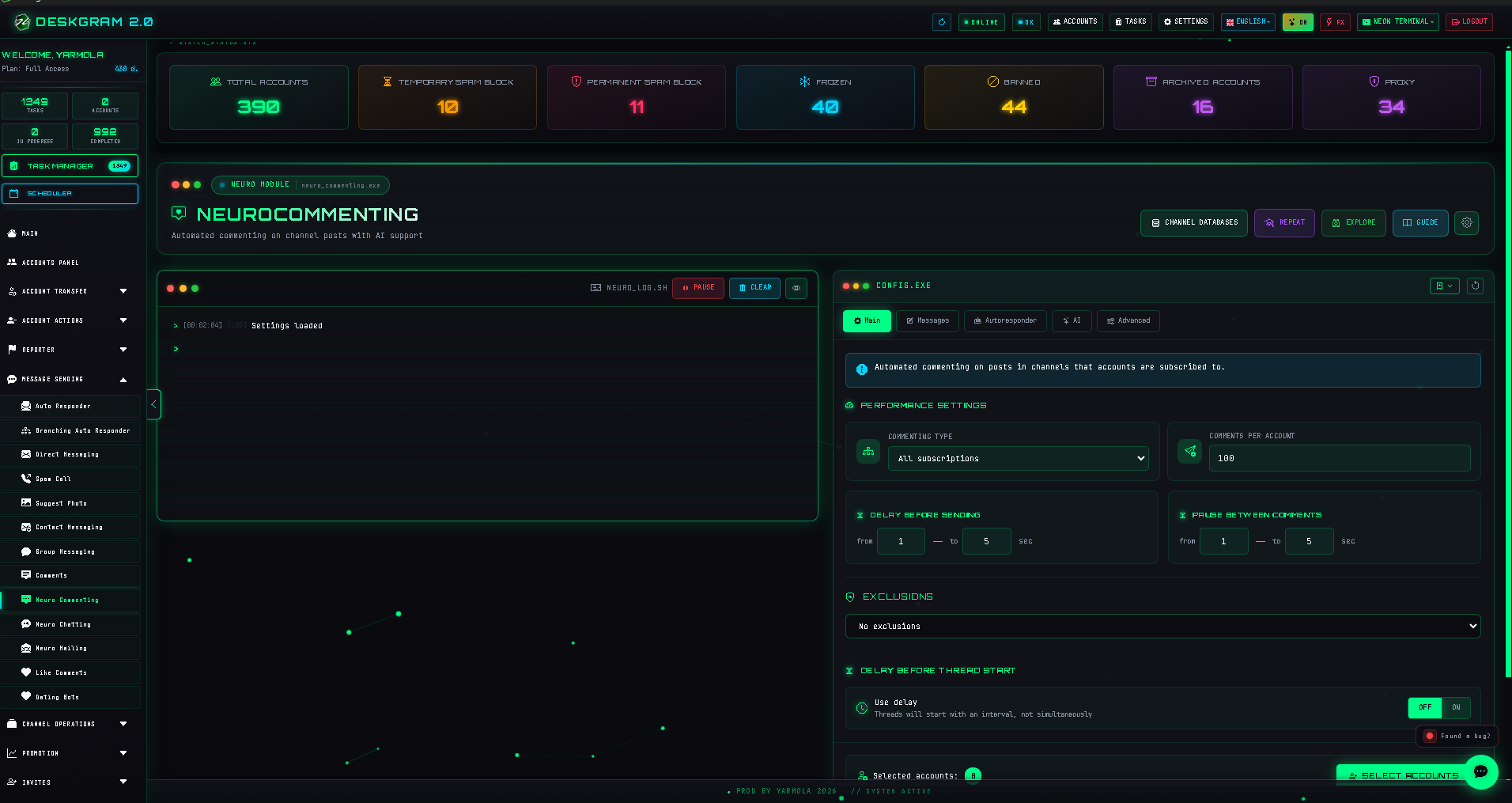
The Neuro Commenting module monitors selected Telegram channels and posts comments under new publications. Its key difference from simple template commenting is the AI layer: you can define tone, context, and reply logic instead of posting the same text everywhere.
Use this module when you want to participate in relevant discussions and create a softer first touch than direct messaging or invite.
What to prepare before launch
Prepare:
- stable accounts;
- proxies if you work with many accounts;
- a list of source channels;
- an understanding of the niche and tone;
- comment templates or AI instructions;
- safe limits and delays;
- a small test list.
The source channel list is critical. If the channels are irrelevant, even good AI comments will not help.
How the module works
The module watches selected channels, detects new posts, and sends comments from your accounts.
It can be used for:
- AI-assisted comments;
- template comments;
- mixed scenarios;
- soft brand presence;
- collecting signals from discussions;
- preparing warmer audience segments.
Basic workflow
- Add source channels.
- Configure comment settings.
- Configure timing and limits.
- Set up AI instructions.
- Select accounts.
- Run a small test.
- Check statistics and logs.
Source channels
Source channels define where comments will appear.
Choose channels that:
- publish regularly;
- match your niche;
- have meaningful comments;
- are not mostly spam;
- contain posts where your product can be relevant.
Do not start with a huge channel list. Test several strong sources first.
Comment settings
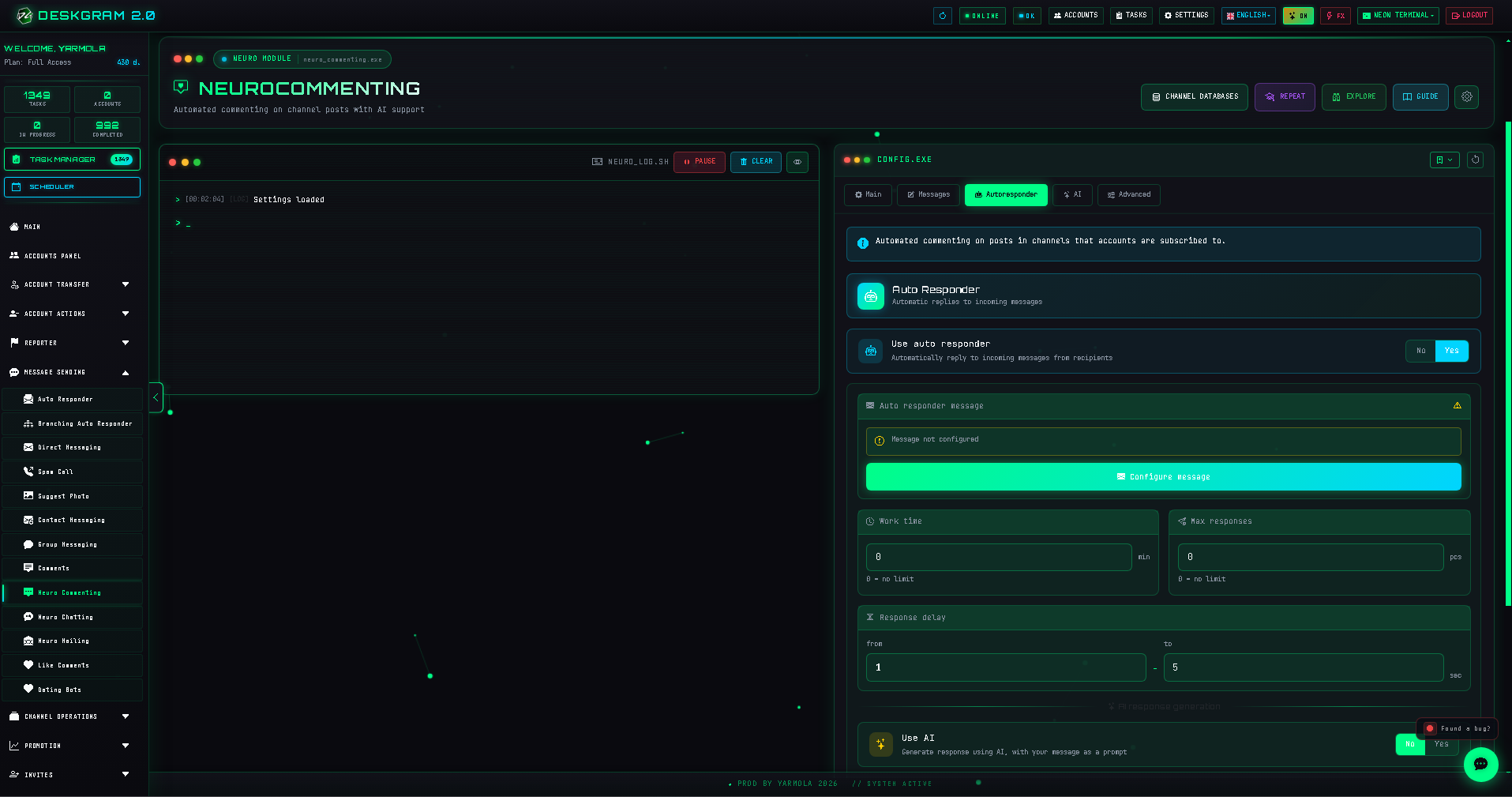
This block controls how many comments should be sent and how accounts participate.
Comment count
Do not start with high volume. First check whether posts are detected correctly and whether comments look natural.
Timing
Delays matter. If comments appear too quickly or too uniformly, the scenario looks artificial.
Account rotation
Rotation distributes workload between accounts. It is important for long-running scenarios.
AI settings
The AI tab controls how comments are generated.
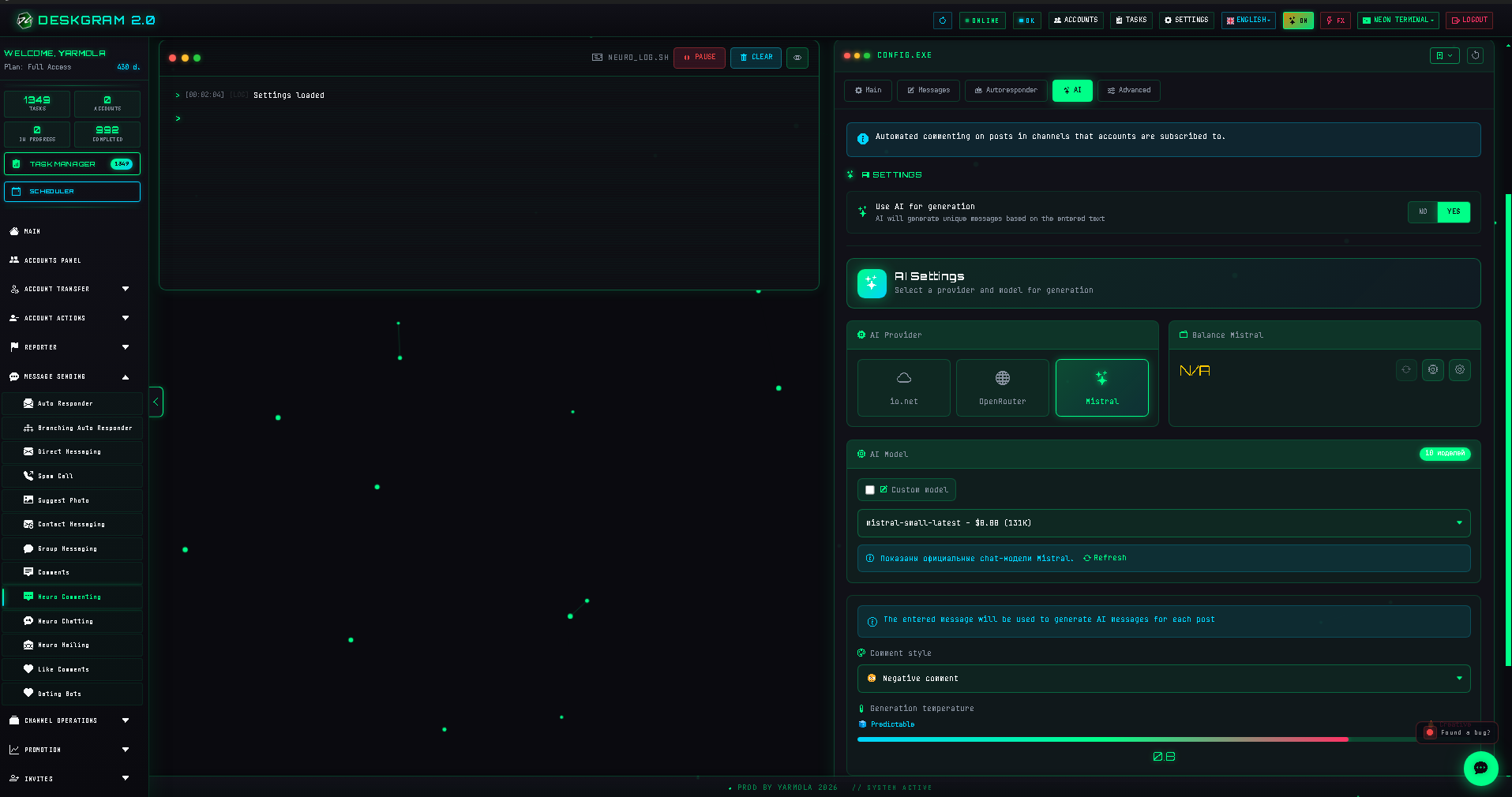
Set:
- tone of voice;
- comment length;
- what should not be promised;
- how directly the product may be mentioned;
- whether links are allowed;
- what type of posts should be ignored.
The AI prompt should not be generic. Different channel themes need different instructions.
Statistics and logs
After the first run, check:
- whether posts were detected correctly;
- whether comments were sent;
- which accounts had errors;
- whether timing looked natural;
- whether the AI output sounded repetitive;
- whether channels were relevant.
Common mistakes
- Using one AI prompt for all channel types.
- Starting with too many channels.
- Commenting too quickly after publication.
- Ignoring account rotation.
- Adding links everywhere.
- Treating AI comments as a replacement for strategy.
What to use with this module
Neuro Commenting works well together with:
- Search Channels and Groups for finding sources;
- Join Groups if accounts need access;
- Comment Audience Parser if you want to collect active users from discussions;
- Direct Messaging for follow-up with warm segments.
Summary
Neuro Commenting is useful when comments are part of a scenario, not when they are random AI-generated text. Choose relevant channels, write clear AI instructions, start slowly, and review statistics before scaling.
Good neuro commenting should feel like participation in a discussion, not like automated advertising.