Telegram Join Groups in Deskgram 2
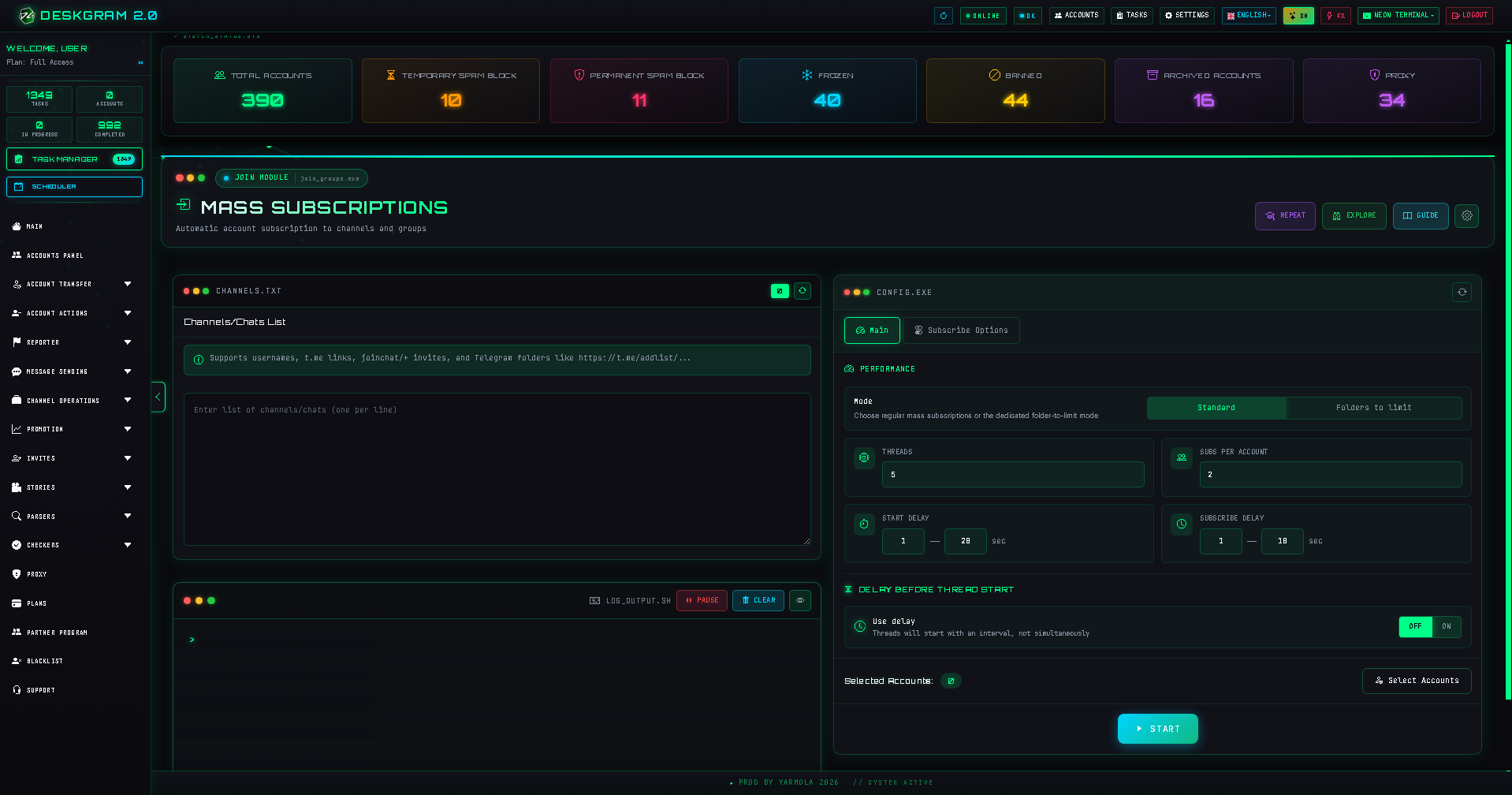
The Join Groups module subscribes accounts to selected Telegram channels and groups. It is often used as an infrastructure step before parsing, commenting, invites, monitoring, or other workflows where accounts need access to the target ecosystem.
What this module does
The module makes selected accounts join specified Telegram channels or groups.
It does not collect users, send messages, or invite users by itself. Its role is to prepare account access.
Use it when:
- accounts need to enter groups before parsing;
- accounts need access before commenting;
- you prepare infrastructure for invite or outreach;
- you want accounts to belong to a specific niche environment.
What to prepare before launch
Prepare:
- accounts ready for subscriptions;
- a list of target channels or groups;
- proxies for larger account sets;
- safe delays;
- a small test batch;
- a plan for what happens after accounts join.
Do not add random groups. The target list should match future workflows.
Basic workflow
- Add target channels or groups.
- Select accounts.
- Configure main settings.
- Configure subscription options.
- Run a small test.
- Check logs and statistics.
- Continue with parser, comments, invite, or another module.
Target list
The target list defines where accounts will enter. If the list is weak, every later module that depends on this access will also be weak.
Good targets are:
- relevant to your niche;
- active;
- not overloaded with spam;
- useful for future parsing or commenting;
- connected to your audience.
Main settings
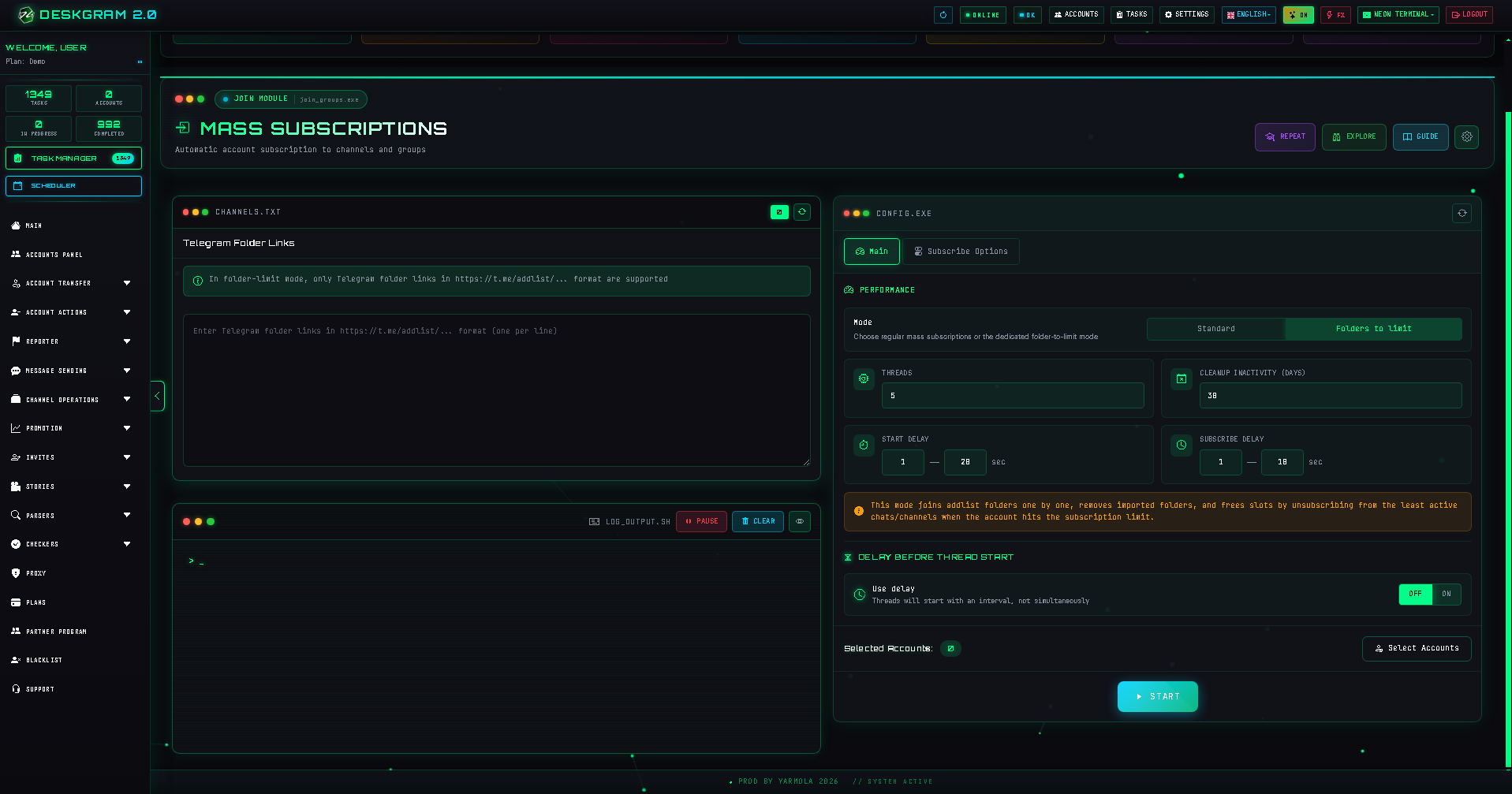
This block controls how accounts work through the list.
Account rotation
Rotation defines how the workload is distributed between accounts. It matters when you use multiple accounts and do not want one account to process too much.
Limits
Limits control how many communities accounts can join. Start with soft values and increase only after checking the first run.
Delays
Delays make the scenario more controlled. Do not run subscriptions too aggressively, especially on new or weak accounts.
Subscription options
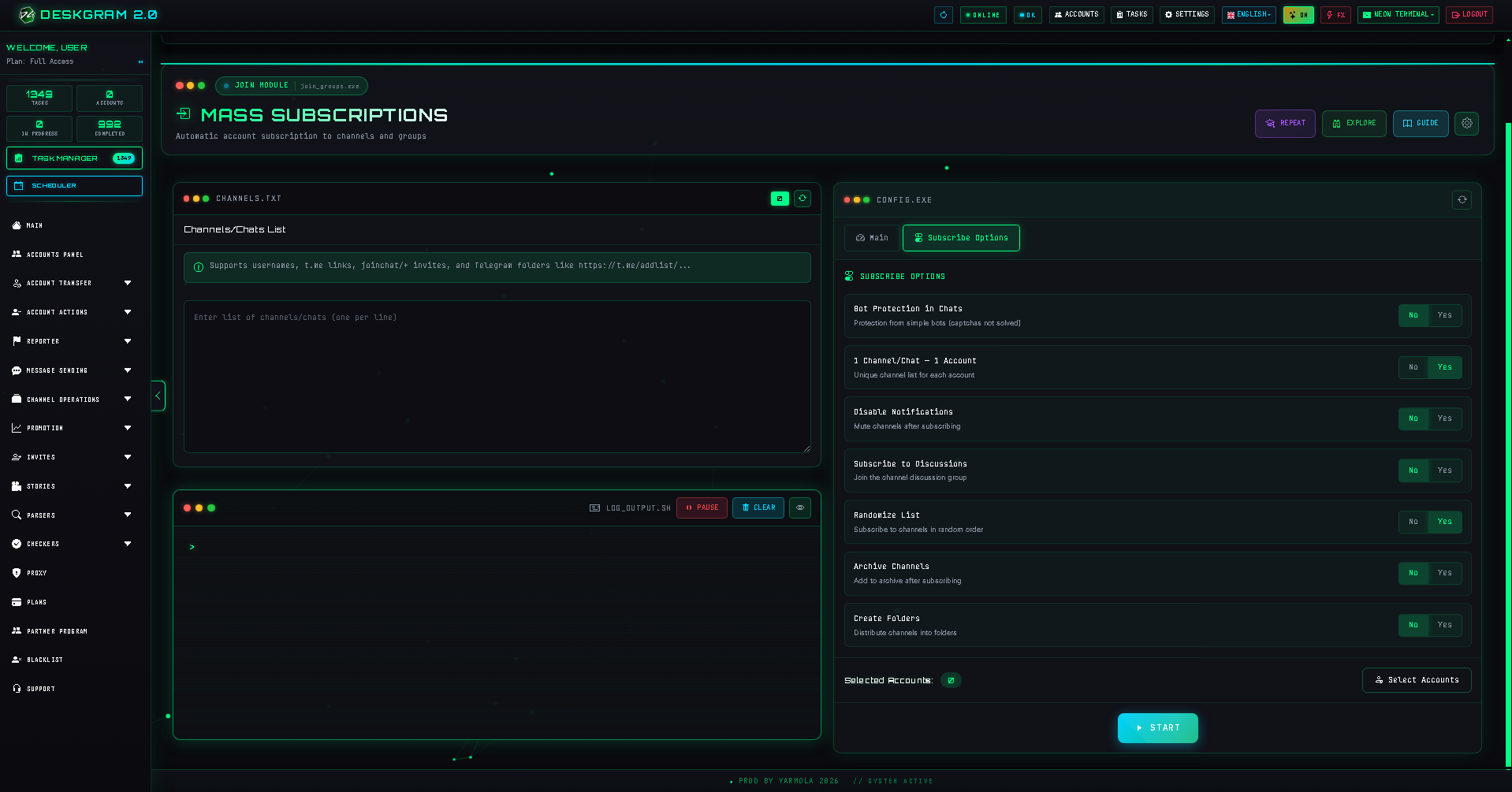
This block defines how the module behaves when accounts join targets and what should happen if access problems appear.
Statistics and logs
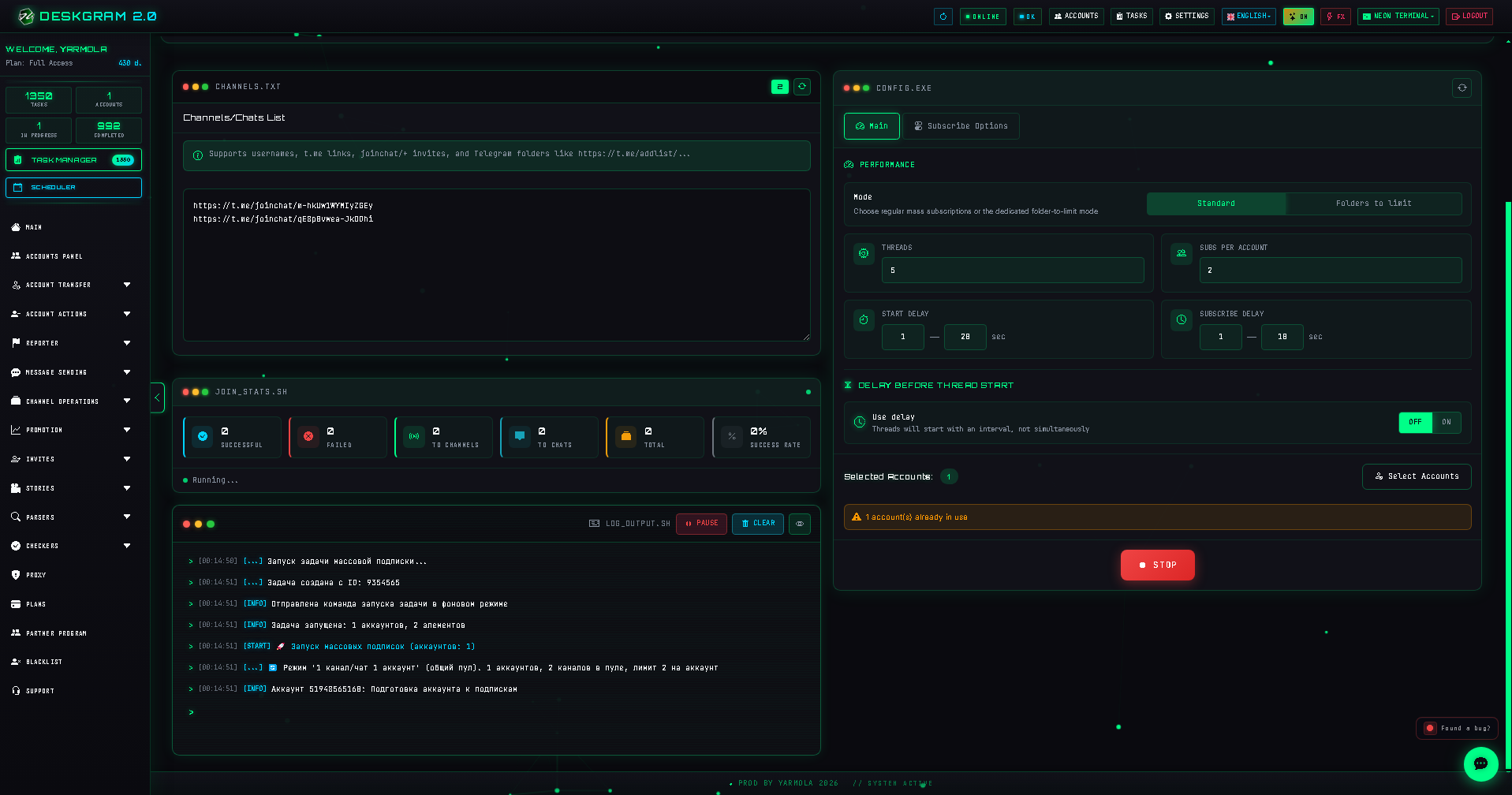
After the first run, review statistics.
Check:
- how many joins succeeded;
- which accounts failed;
- whether specific targets caused problems;
- whether the pace was too aggressive;
- whether proxies caused repeated errors.
Common mistakes
- Joining too many communities at once.
- Using accounts that are not warmed up.
- Adding irrelevant groups.
- Ignoring first-run statistics.
- Treating joining as a background task without checking results.
What to use next
After accounts join the needed communities, you can use:
- Audience Parser;
- Neuro Commenting;
- Invite;
- Comment Audience Parser;
- Search and monitoring modules.
Summary
Join Groups is an infrastructure module. Its value is not in the subscription itself, but in what it enables afterward.
Prepare the target list, start slowly, check statistics, and then move accounts into the next workflow.