Prepare the destination and accounts
Invite adds users to one specified community. It does not send private messages or subscribe your own accounts to other channels. See the invite module for its scope and download access.
Check that the working account can open the community and invite members. Prepare a small, appropriate recipient list and authorized accounts that are available for the task. If using proxies, check assignment and connectivity in the account panel.
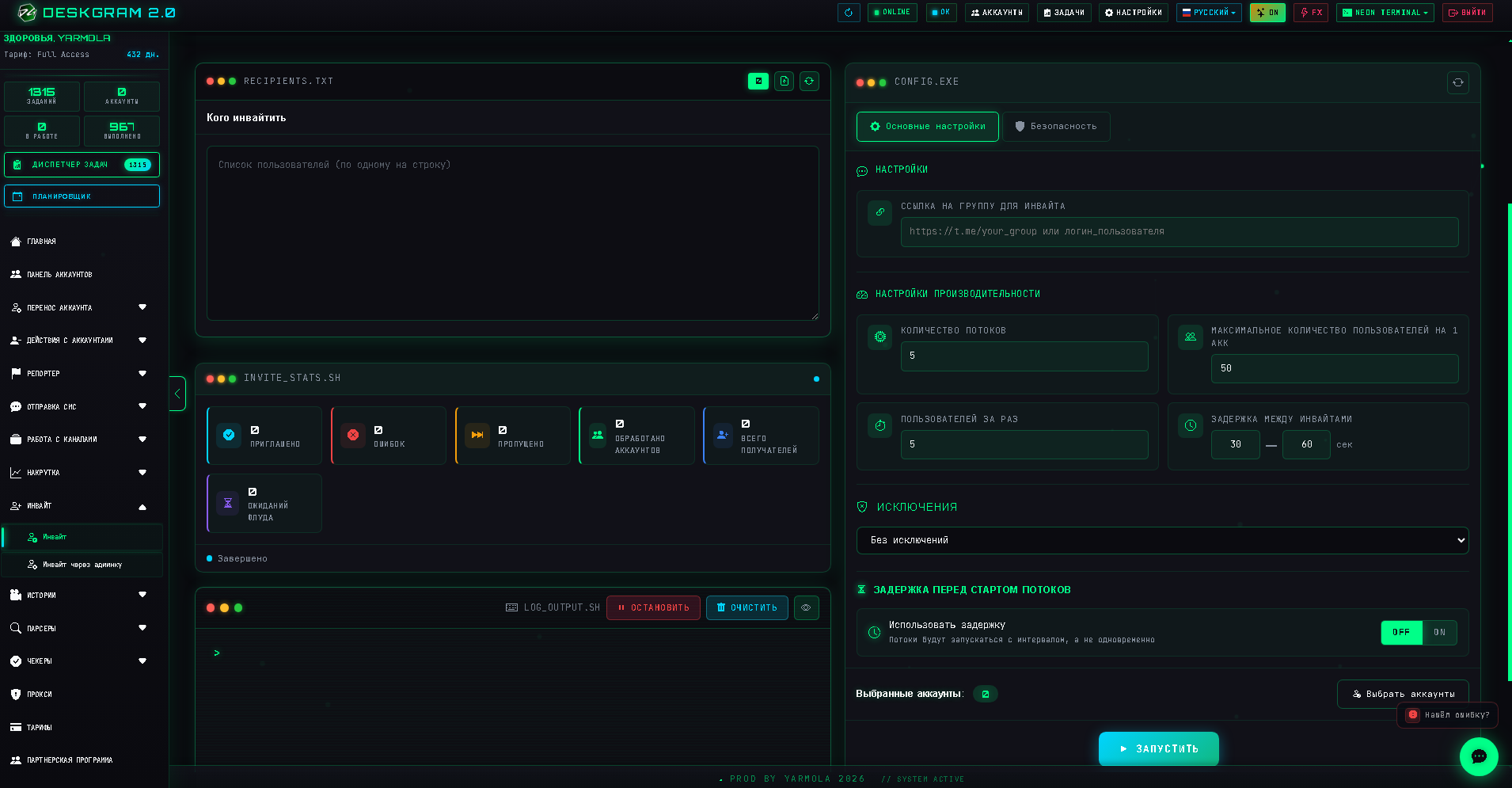
The retained screenshots use Russian. Your version may look different; newer queue states are described below.
Set one destination and load recipients
Enter one community link or username. Multiple destinations separated by commas, semicolons or spaces fail validation.
Enter recipients manually or load TXT in the list component. Use understandable identifiers such as usernames, public user links or international phone numbers. Resolution and invitation depend on information available to the working account. A numeric ID alone does not make every user resolvable.
Check manual exclusions or the user blacklist. Different inputs may identify the same person; the current queue matches available identifiers. The number of TXT rows is not necessarily the number of distinct recipients.
Set volume and pauses
| Setting | Meaning |
|---|---|
threadsCount | Concurrent accounts; integer from 1 to 20 |
maxUsers | Account's counted accepted-invitation limit in this task, not guaranteed membership growth |
usersPerTime | Processed queue items in a series before pausing; invitations use individual requests |
randWaitingFrom, randWaitingTo | Seconds between series; lower bound must not exceed upper bound |
| Thread-start delay | Spreads account startup across the configured range when enabled |
Volume and error thresholds require positive integers; zero does not mean unlimited. Account-level and application-access limits apply separately.
Illustrative example: usersPerTime = 2 processes two queue items before the series pause. Items may be skips or errors, so this does not promise two new members. Start with one account and a few appropriate recipients, then compare the log with actual membership.
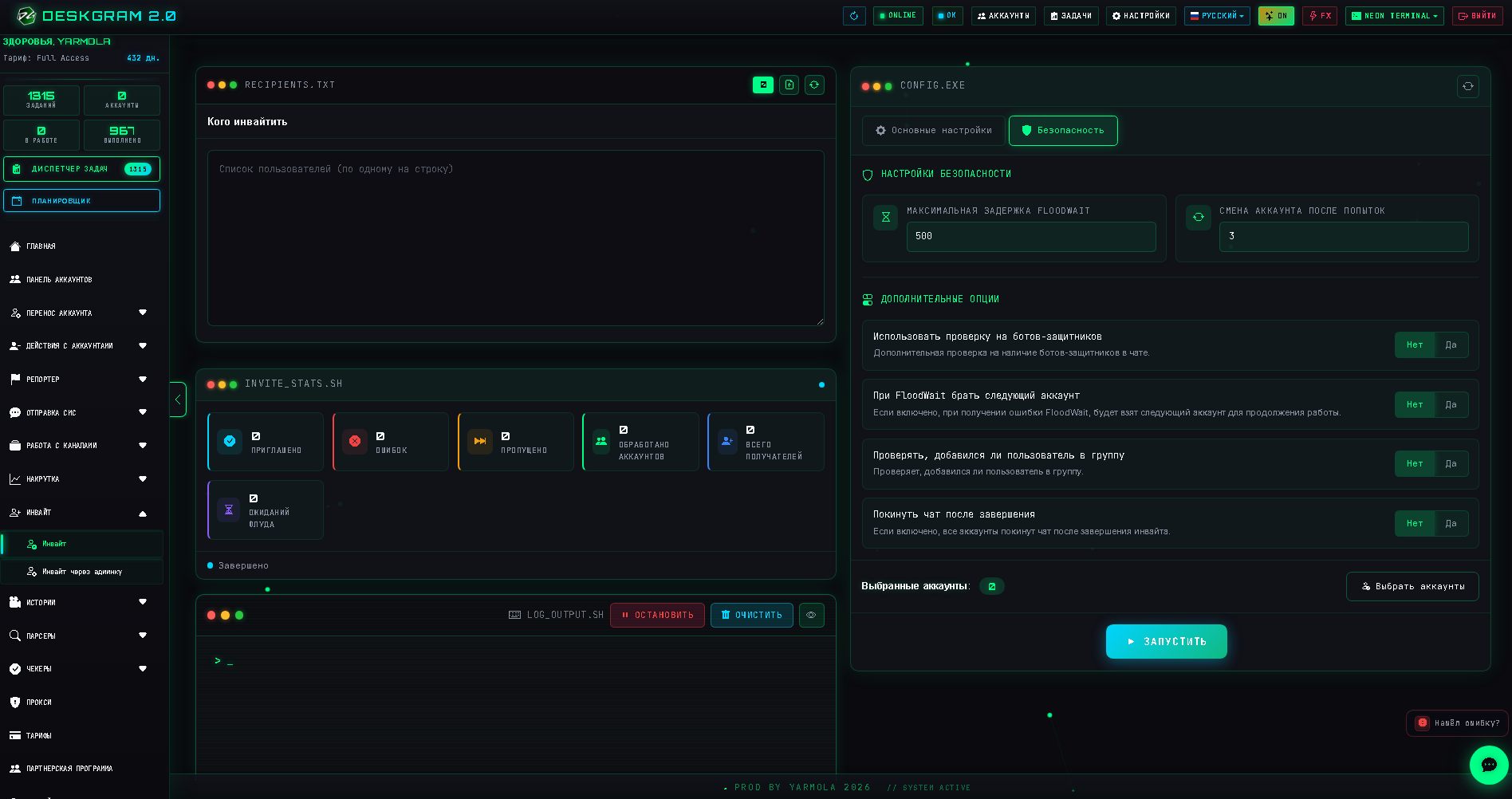
Review the security tab
floodtimeis a positive number of seconds for handling Telegram's FloodWait; it does not remove the wait.changeAccountAfterstops current account work after the consecutive-error threshold.accFloodTakeNextchanges queue behavior on FloodWait without removing the previous account's restriction.verifyAddedchecks membership after an accepted request. An unavailable check and a confirmed non-member are different results.leaveChatAftermakes the working account leave afterward; decide whether it still needs access.useBotsCheckis currently unavailable. Keep it off. Old saved settings containingtrueare rejected before launch; disable it and save the settings again.
Delays do not replace account permissions or recipient privacy. There is no universally permitted invitation count for every account.
Run a test and read the queue
Select accounts, review the destination and exclusions, then start. A delayed-start control is available for a future launch. Follow the log, statistics and queue; wait for the final report after stopping.
| State | Meaning |
|---|---|
pending, in_progress | Waiting or being processed |
success | Request accepted under task rules; check whether membership verification was enabled |
already_member | User already belongs to the community |
excluded, permanent_failure | Excluded or a final refusal for that entry |
deferred | Deferred; inspect the reason |
unknown | Outcome uncertain, for example after a connection interruption or unavailable membership check |
The summary provides separate exports for remaining entries and unknown outcomes. Do not merge them. Investigate membership and the reason before retrying an unknown result: cancellation or a lost response does not prove nothing happened. A saved queue/report does not promise automatic resumption of every interrupted task.
Diagnose missing additions
Check the actual account's permissions for CHATADMINREQUIRED; examine Telegram's refusal for USERPRIVACYRESTRICTED or USERNOTMUTUALCONTACT. USERCHANNELSTOOMUCH concerns the recipient. For FloodWait, follow the reported time and account state. If acceptance is recorded but membership is unclear, inspect verification and the queue rather than rerunning the original list.
For administrative assignment, use the admin invite guide. For messages, use the private messaging guide. More instructions are in the catalog; installers are on the download page.