Telegram Direct Messaging in Deskgram 2
The Direct Messaging module is used for sending messages to private Telegram chats. It combines the recipient base, message constructor, sending limits, AI settings, logs, and autoresponder logic in one workflow.
Use this module when you already have a prepared audience and want to start a controlled private outreach scenario.
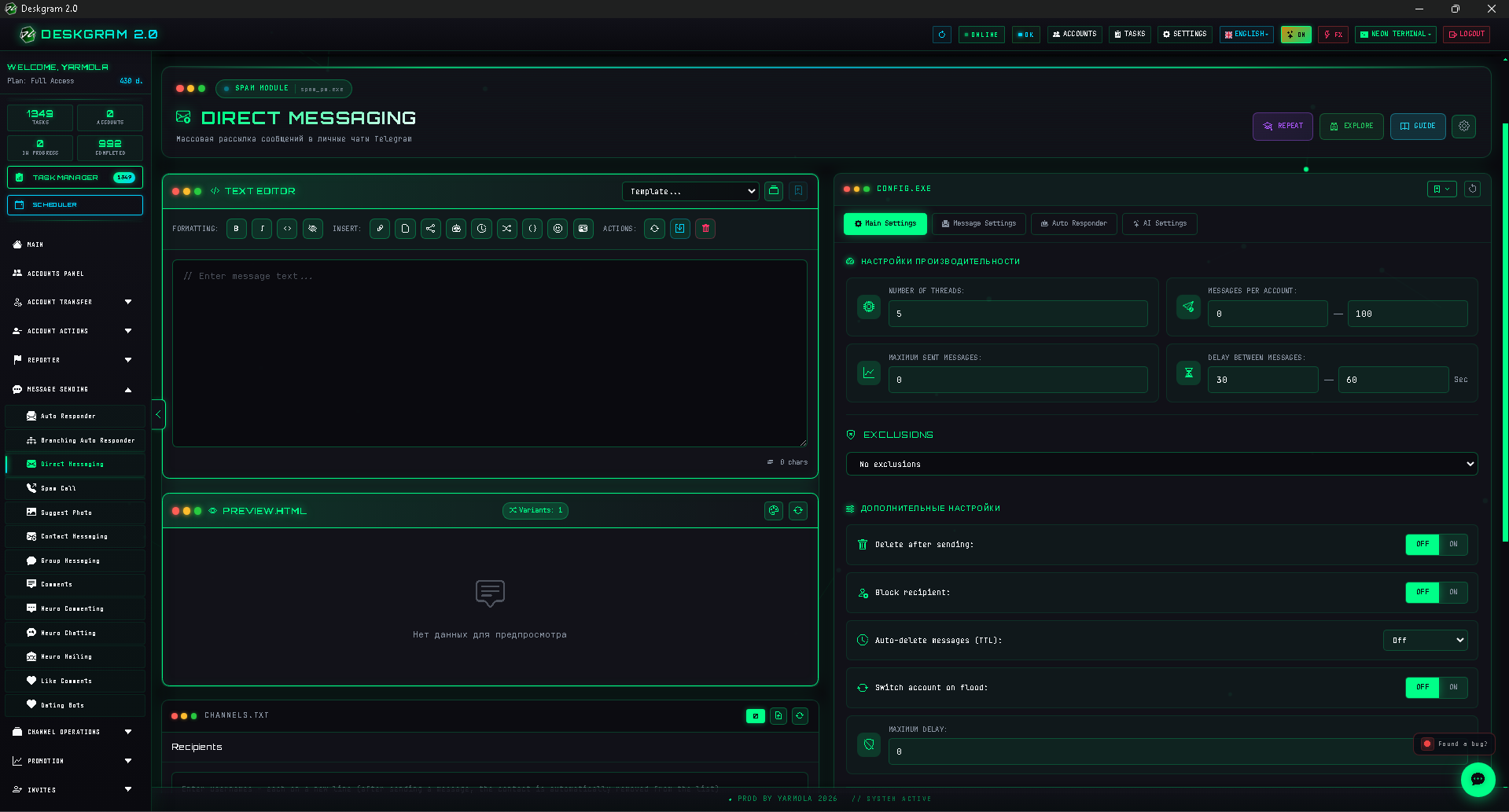
Important note about the message constructor
When you open the module, the Text work block is visible immediately. This is the message constructor.
It can be used for:
- message variations;
- spintax;
- insertions;
- different first-message versions;
- preparing text for safer testing.
The message constructor affects the quality of the first contact. Do not treat it as a simple text field.
What to prepare before launch
Prepare:
- a recipient base with usernames or phone numbers;
- message text for the first touch;
- autoresponder text if replies should be processed;
- accounts ready for private messaging;
- proxies if you distribute work across many accounts;
- a small test segment.
User IDs are not supported as the main recipient format. Use usernames or phone numbers.
How the module is structured
The settings area has four main tabs:
- Main settings;
- Sending parameters;
- Autoresponder;
- AI settings.
Additional blocks include:
- message constructor;
- recipient block;
- logs;
- account selection.
Step-by-step setup
Step 1. Add recipients
Insert usernames or phone numbers into the recipient block. The quality of this list matters more than the sending speed.
Do not start with a full database. Test a smaller segment first.
Step 2. Configure main settings
This block controls the workload.
Threads
Threads define how many accounts work at the same time.
Example:
- 100 accounts;
- 10 threads;
- first 10 accounts work;
- then the next accounts join the task.
Do not set too many threads for the first launch.
Messages per account
This setting defines how many messages each account can send. It is usually configured as a range, for example 1-3.
Recommendations:
- new accounts: 1-2 messages;
- medium accounts: 2-3 messages;
- higher values should be increased slowly and only after testing.
Maximum sent messages
This setting limits the total number of sent messages for the whole task. If you do not need a global cap, leave it at 0.
Delay between messages
This is one of the key safety settings. A pause of 100-300 seconds between messages is usually a much safer starting point than aggressive sending.
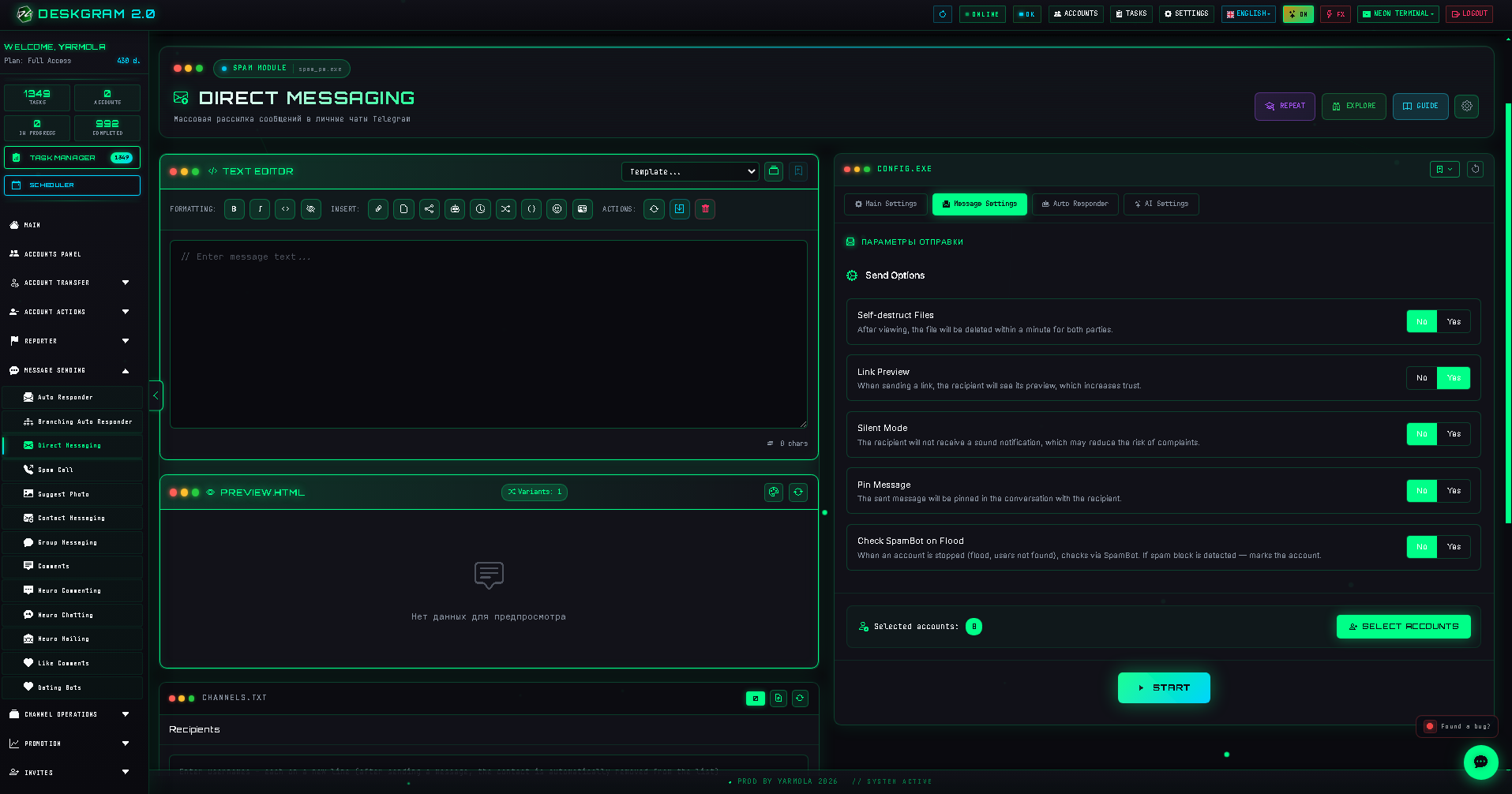
Blacklist and exclusions
The exclusion list prevents messages from being sent to specific users.
Use it when:
- a user already replied;
- a user asked not to be contacted;
- the same base is used again;
- you need to avoid repeated touches.
Autoresponder
If users reply, the autoresponder helps keep the conversation structured.
Use it for:
- sending a link to a guide;
- sending a web preview;
- answering basic questions;
- routing users to a bot or operator;
- handling simple refusals.
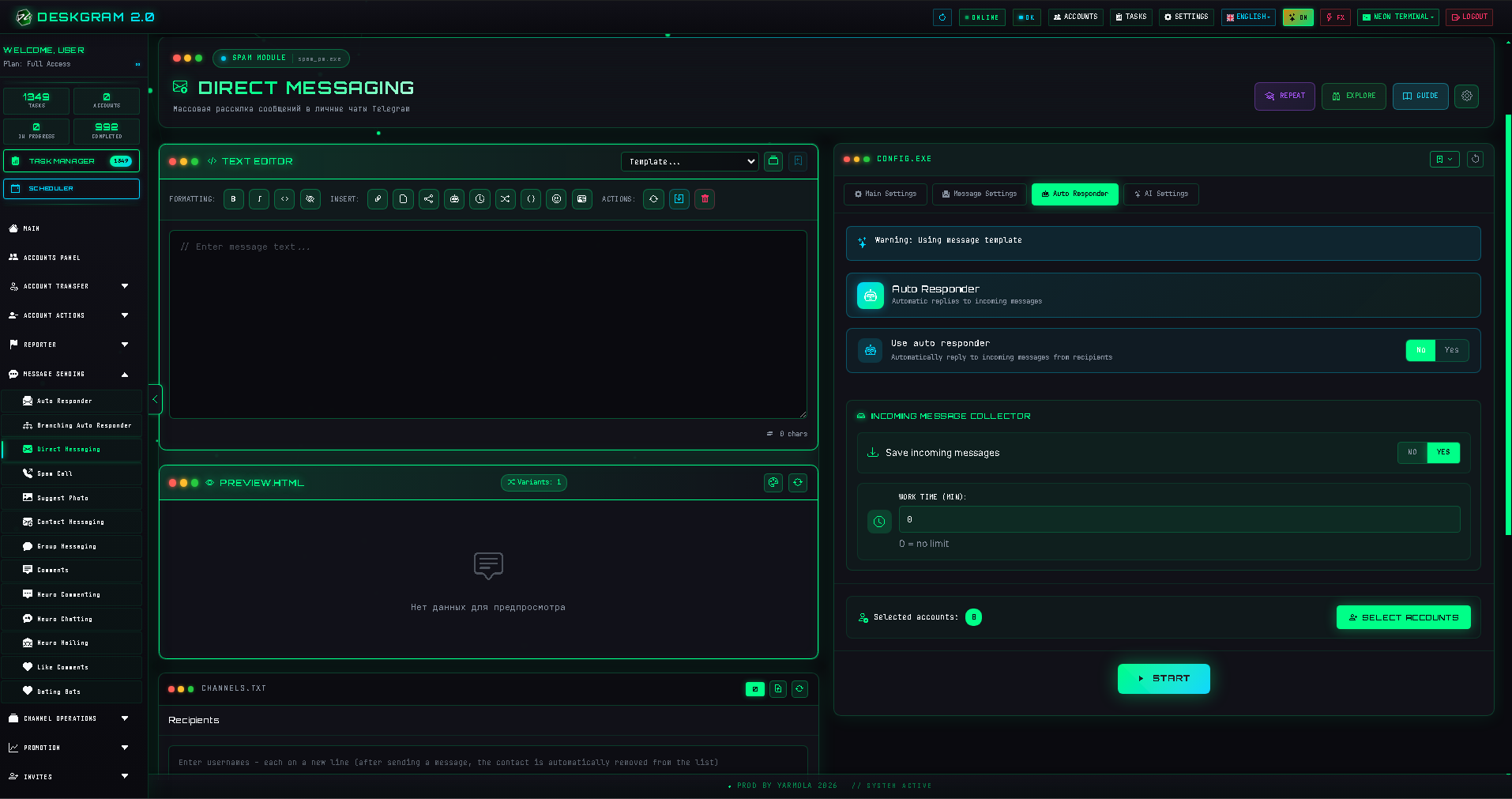
AI settings
The AI block is useful when simple templates are not enough.
Use AI for:
- softer wording;
- message variations;
- different tone for different segments;
- reply preparation;
- more flexible follow-up logic.
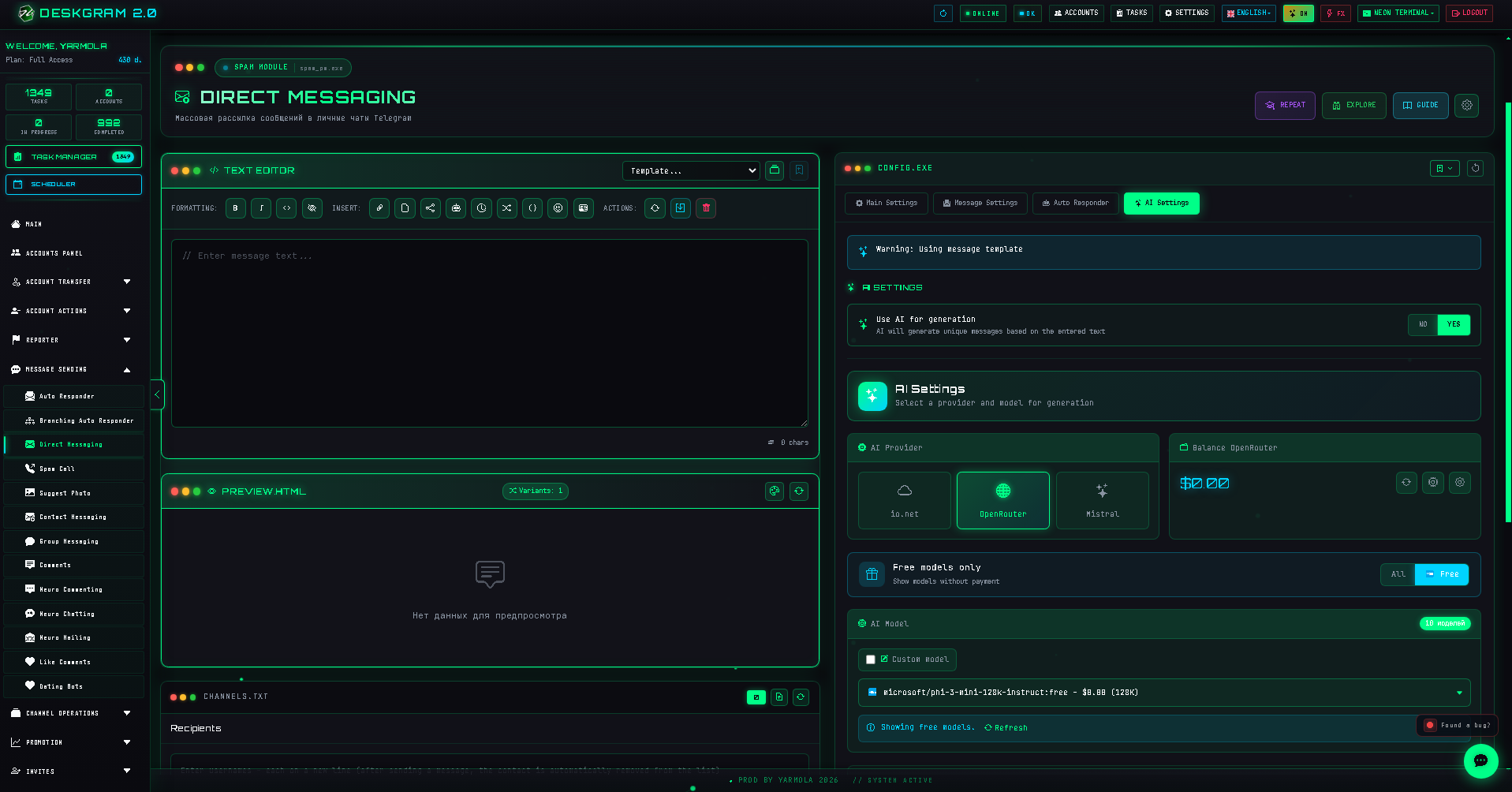
What to check after the first launch
Review:
- how many messages were sent;
- which accounts had errors;
- whether delays were too aggressive;
- whether users replied;
- whether the message looked too generic;
- whether the autoresponder handled replies correctly.
Common mistakes
- Sending to a raw parsed base without segmentation.
- Using one message for completely different audiences.
- Setting too many threads.
- Ignoring delays.
- Launching without an autoresponder or reply plan.
- Scaling before a small test.
Summary
Direct messaging is not just bulk sending. It is a controlled outreach workflow: audience quality, message constructor, account load, delays, autoresponder, AI, and logs all work together.
Start with a small segment, review the first results, and only scale the parts that behave predictably.