Sending Requests to Telegram Bots in Deskgram 2
The Bot Request Sender module is intended for authorized testing of bots you own or operate. It helps simulate user command flows so your team can understand whether a Telegram bot handles expected load and interaction sequences correctly.
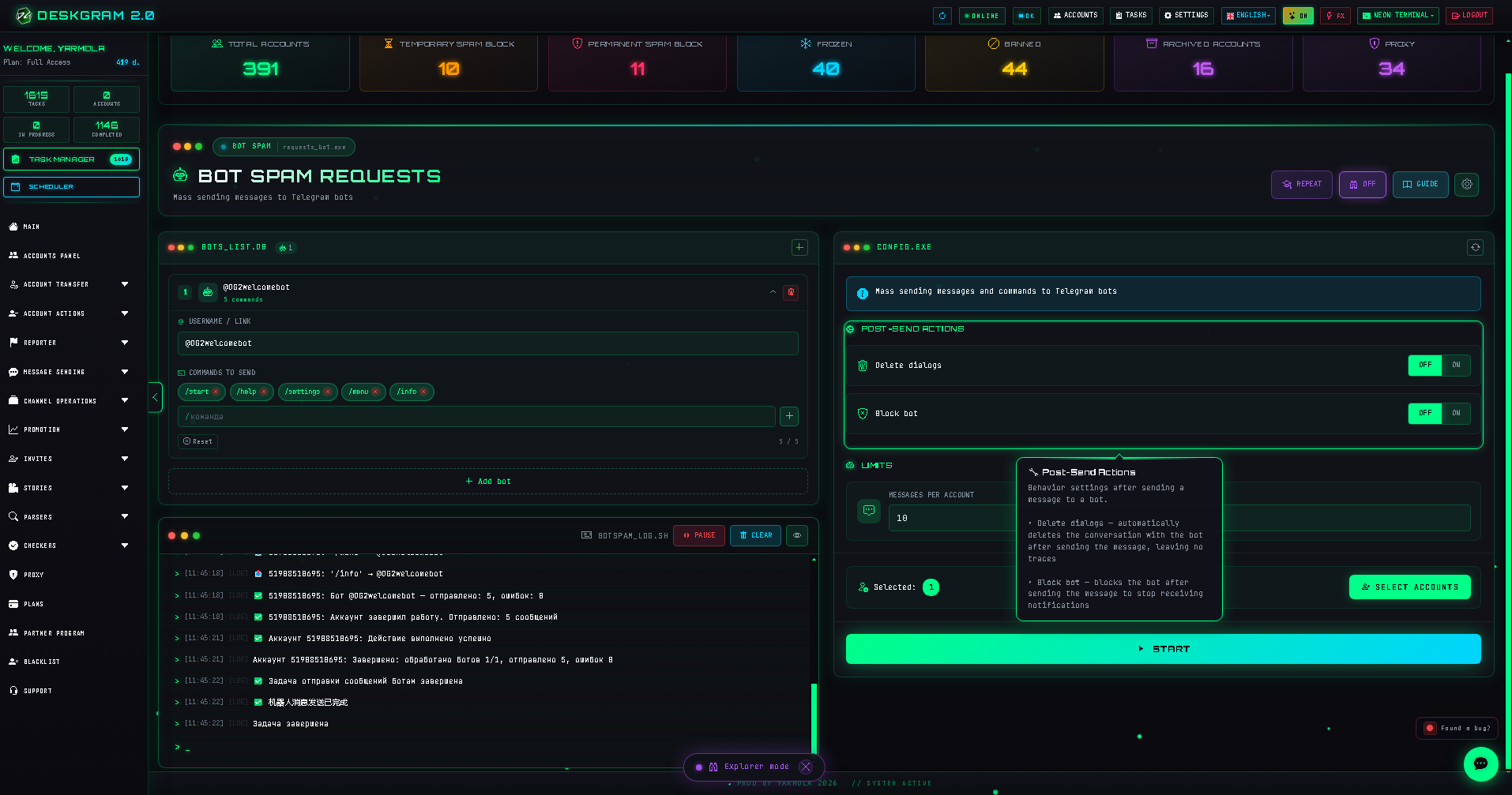
1. Build the bot scenario
Start on the left:
- Paste the username of the bot you are authorized to test, such as
@myshopbot. - Add the commands that accounts should send, for example
/start,/help, or menu action text. - Arrange commands into the intended user path so the test represents real behavior.
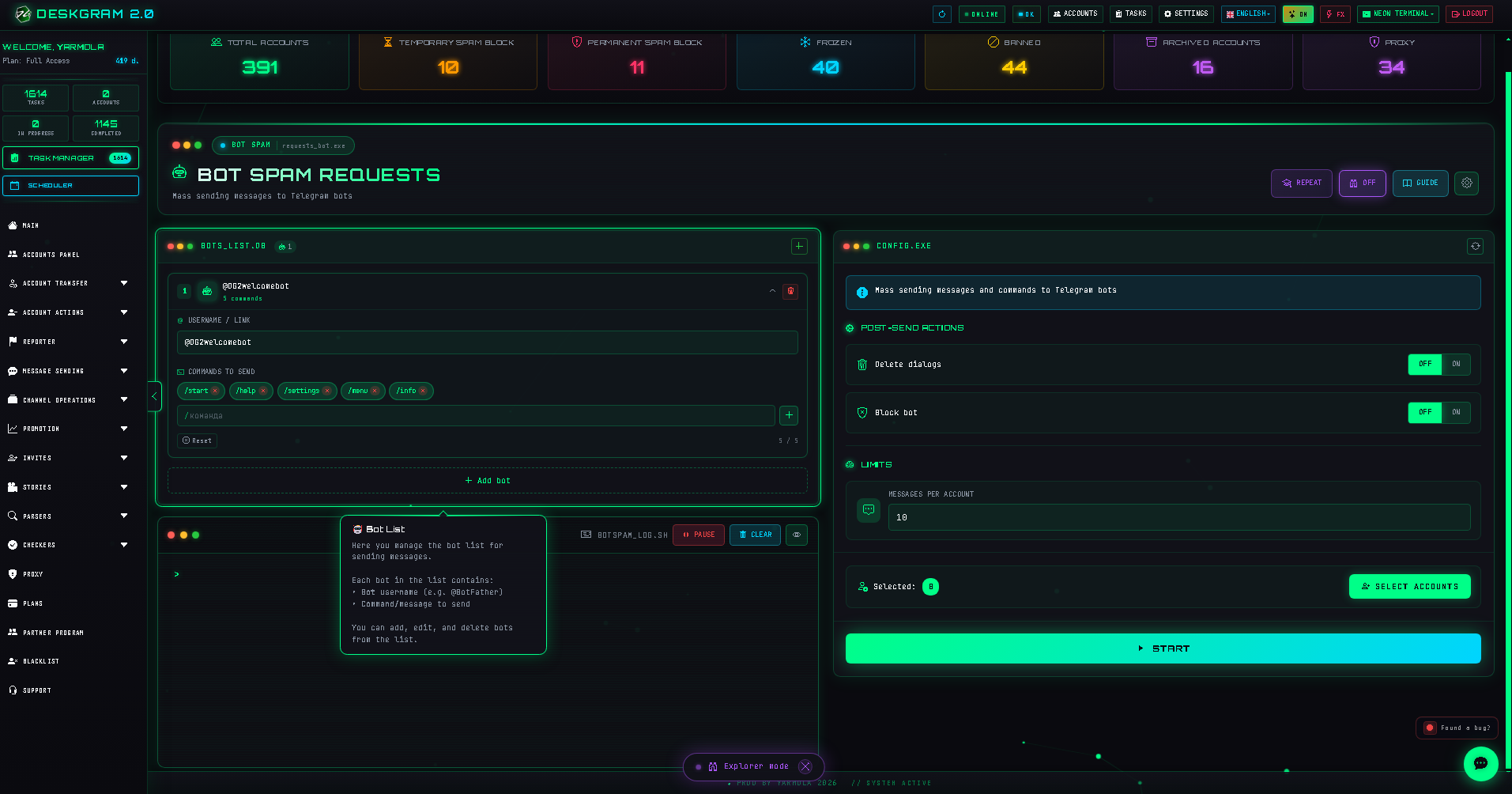
Do not launch a test without understanding which commands and buttons form a valid flow; otherwise the results do not represent real load.
2. Configure limits and cleanup behavior
The settings panel controls pace and account behavior:
- Messages per account: maximum number of bot requests sent by each account.
- Delete dialog after sending: clears the conversation after the scenario is complete.
- Block bot after completion: blocks the bot on the test account when that is part of your cleanup procedure.
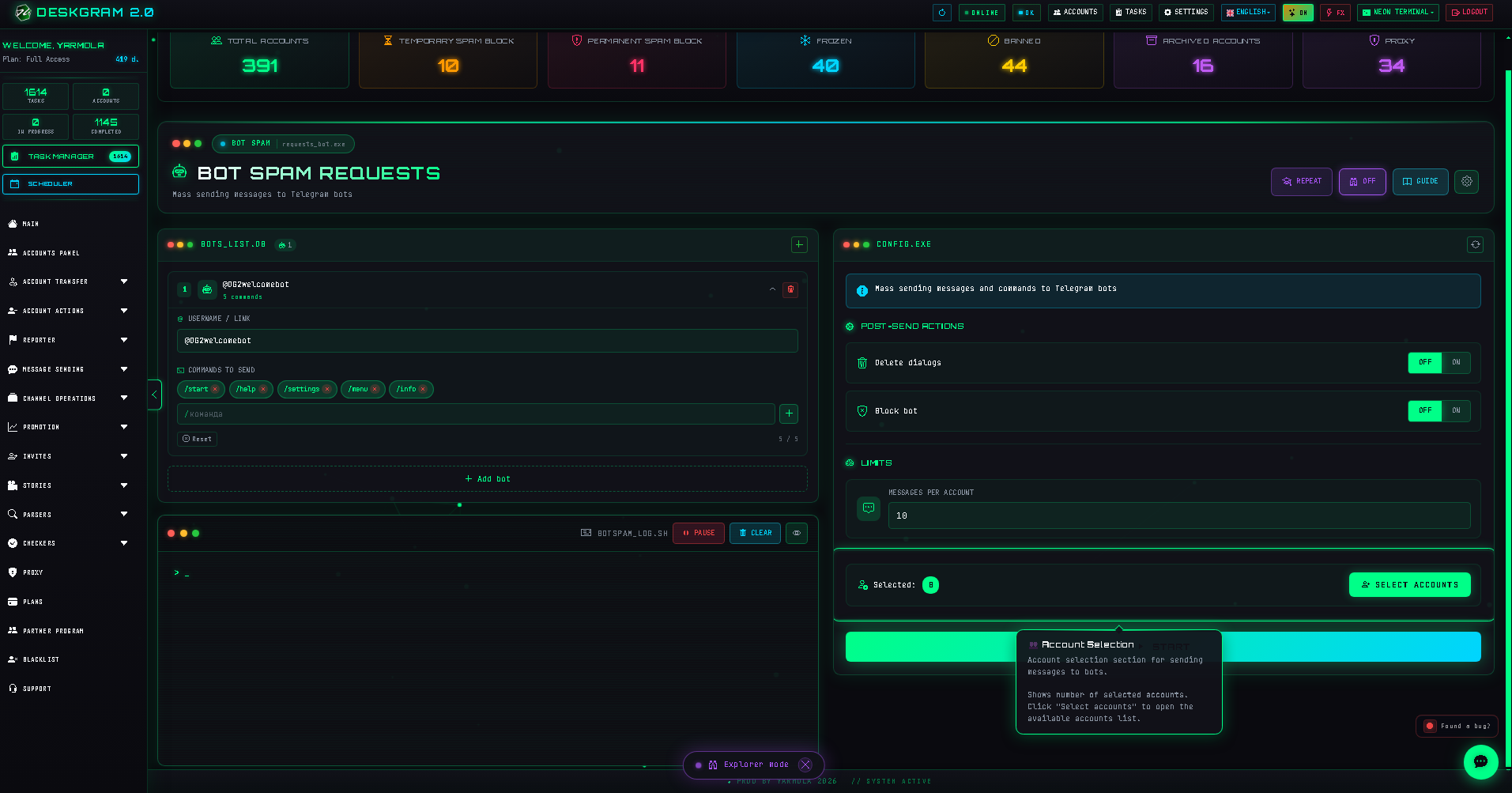
3. Select accounts and run an authorized test
Select the accounts assigned to the scenario. Start with a small validation run:
- use 10-20 test accounts;
- configure a short path of two or three commands;
- launch the task and inspect logs and your bot's health metrics.
Only expand the authorized load test after the bot behaves correctly at the initial scale.
4. Common mistakes
- mixing command sequences for unrelated bots in one task;
- sending random text when the bot expects a specific command or menu path;
- treating the module as an autoresponder: it sends scripted requests; it does not hold an adaptive conversation.
View the module in your browser
Use the web preview to inspect the module.