Telegram Autoresponder in Deskgram 2
The Autoresponder module is a dedicated tool for processing incoming private messages on your Telegram accounts. It is useful after direct messaging, neuro mailing, commenting, or any other activity that can make users write back.
The goal is simple: do not let incoming interest go cold. The module watches incoming messages and replies according to rules, templates, exclusions, and optional AI logic.
What to prepare before launch
Prepare:
- accounts that receive incoming messages;
- reply templates;
- a blacklist or exclusion list;
- limits for how many answers can be sent;
- delays between incoming message and reply;
- AI settings if you need flexible conversations;
- a plan for where to send interested users next.
The autoresponder should not be launched without a reply strategy. It is not only a background helper. It becomes the reply layer of the whole funnel.
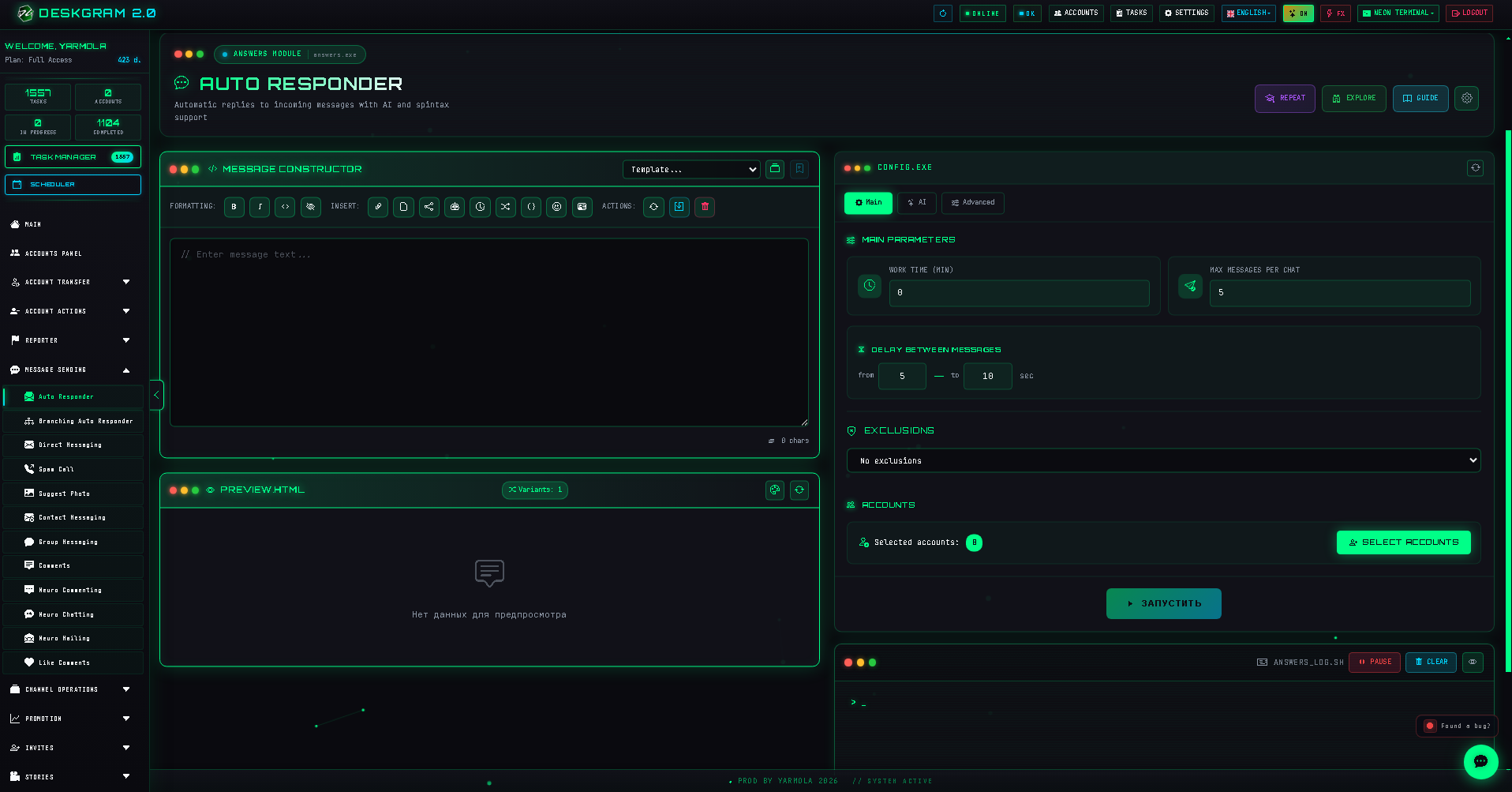
Main tab: working time and limits
The left side contains the message constructor, where you can prepare reply templates, randomization, and media attachments. The right side contains the settings panel.
The Main tab controls the foundation:
- Working time: how long the task stays active.
0means the autoresponder keeps working until you stop it. - Maximum replies per chat: how many messages an account can send to one user in the same dialog. This protects against loops.
- Delay before reply: how many seconds the account waits before answering.
Use a realistic delay. Instant replies can look unnatural, especially when many accounts work at the same time.
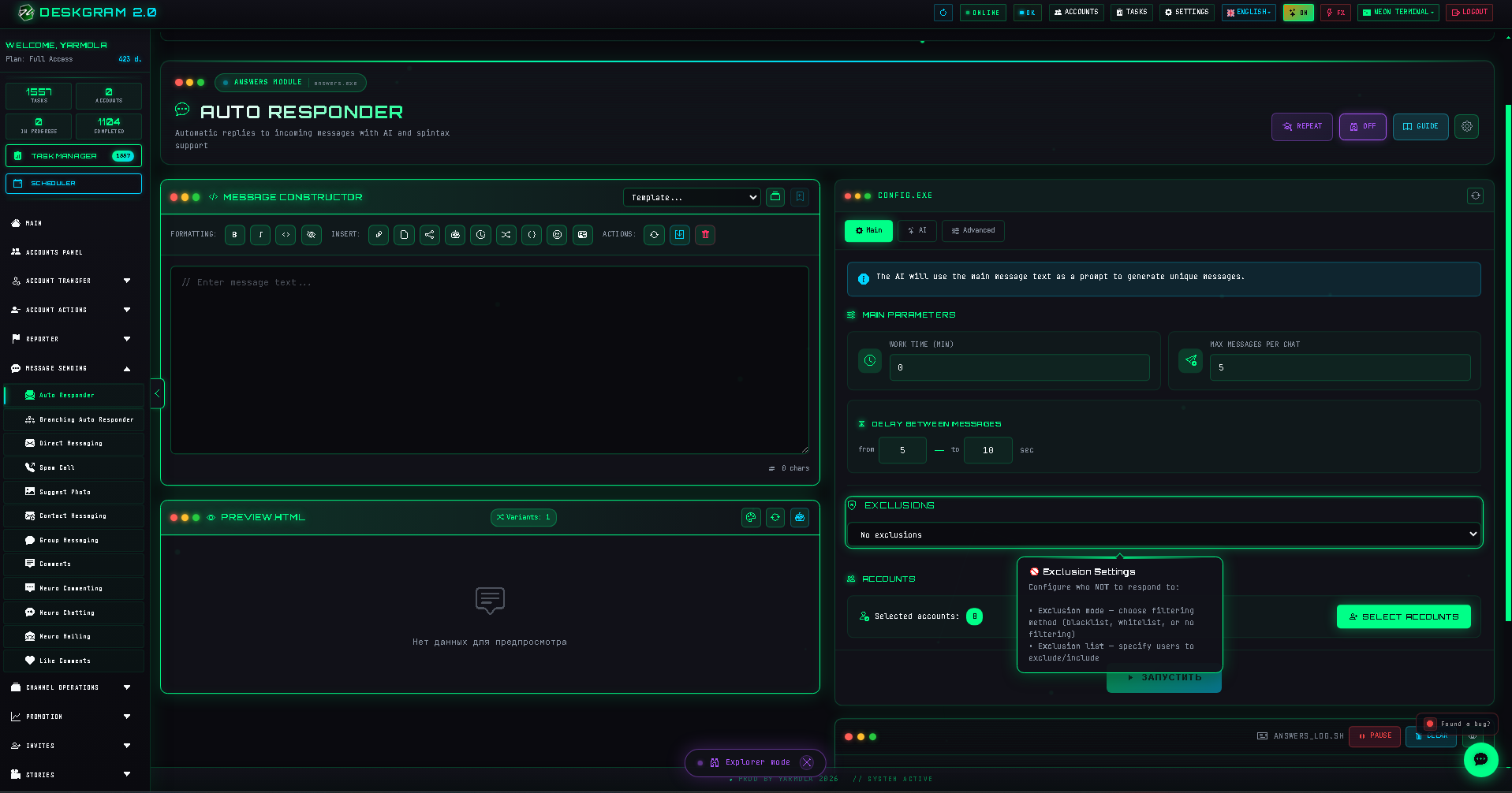
Exclusions
The exclusions block defines who should not receive automatic replies.
Use exclusions for:
- users who asked not to be contacted;
- service bots;
- internal accounts;
- channels or group notifications;
- contacts that should be handled manually.
Advanced tab: old dialogs and filters
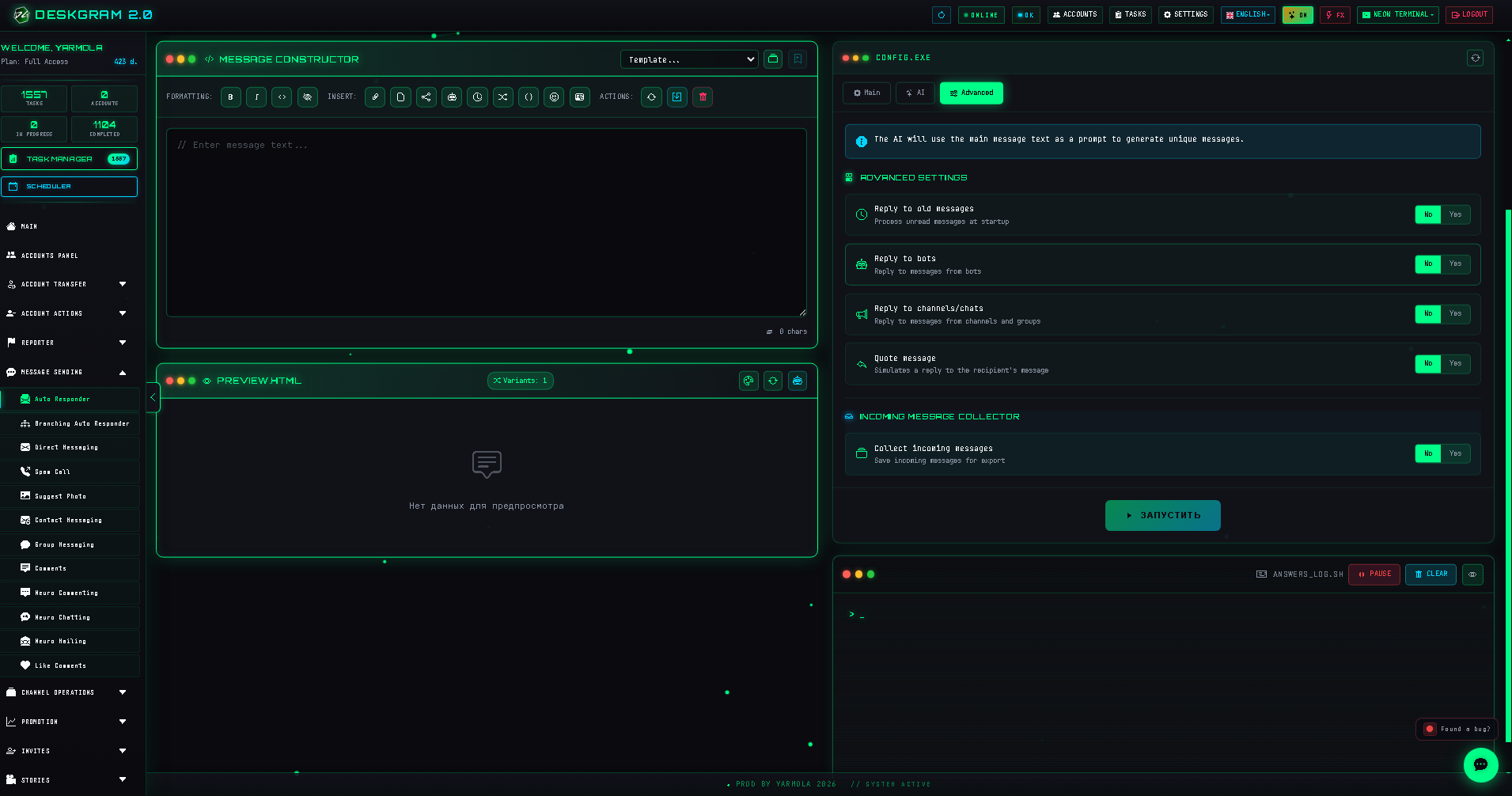
The Advanced tab contains important safety settings.
Reply to old messages
If enabled, the account checks message history and can reply to people who wrote before the module started.
Use this carefully. Do not set a deep history window without a reason. Replying to very old dialogs in bulk can look suspicious and confuse users.
Incoming message collector
Enable this if you want Deskgram 2 to save incoming messages in one place. It is useful when many accounts receive replies and you do not want to open each account manually.
Quote messages
When enabled, replies are sent as a reply to the user message. This can make the answer clearer, especially in longer dialogs.
Ignore bots, channels, and chats
Usually this should be enabled. The autoresponder should focus on real private dialogs and avoid replying to service bots, channels, and group notifications.
AI tab
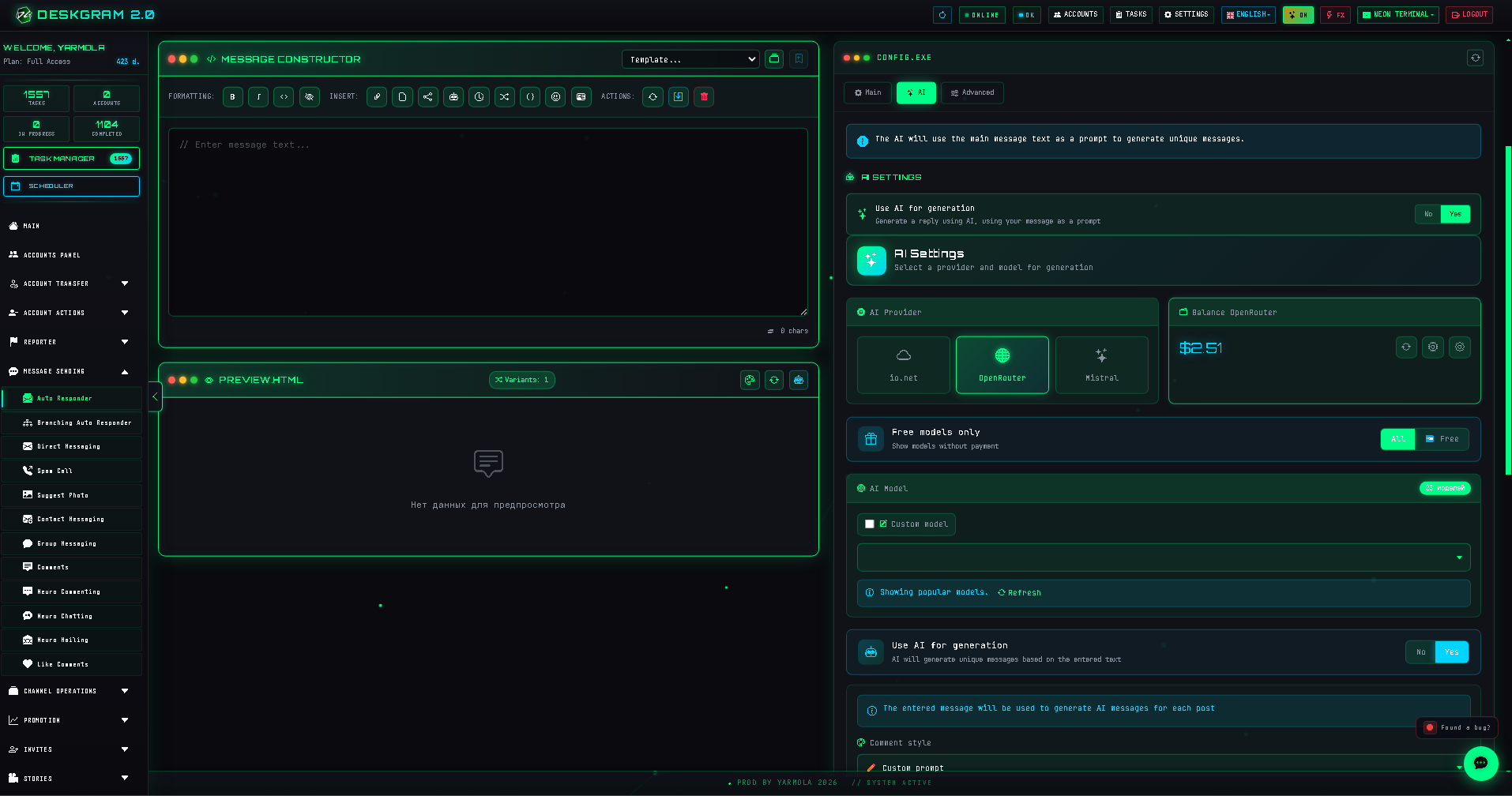
If template replies are not enough, enable AI.
AI can help when:
- users ask questions in different wording;
- you need softer replies;
- the dialog should continue after the first answer;
- the product requires explanation;
- you want the account to route users to a guide, bot, or web preview.
The AI prompt should be specific. Define what the account represents, what it can say, what it must not promise, and when the dialog should be transferred to a human.
Best combinations
The autoresponder rarely works alone. It is usually launched together with:
- Direct Messaging;
- Neuro Mailing;
- Neuro Commenting;
- Bot or website funnel;
- Task Manager.
Example:
- You launch direct messaging.
- Users start replying.
- The autoresponder catches incoming messages.
- It sends a guide, bot link, or web preview.
- Complex questions can be handled manually or by AI.
Web preview
You can inspect the module in the browser before installation:
Open Web Preview: Autoresponder
Common mistakes
- Launching without exclusions.
- Replying to old dialogs too aggressively.
- Sending too many replies to one user.
- Using template replies for complex questions.
- Enabling AI without a clear prompt.
- Not collecting incoming messages for review.
Summary
The Autoresponder is the reply layer of Deskgram 2. It helps keep incoming interest alive after outreach, comments, or other activity.
Use limits, exclusions, and delays carefully. Add AI only when you need flexible answers, and always test the scenario before running it across many accounts.