Admin-Based Telegram Inviting with Deskgram 2
This guide covers the Admin Invite module in Deskgram 2.
It is not the same as a standard invite workflow. Here, the scenario is built around accounts that already have admin permissions and use those permissions to invite users into a target group or channel.
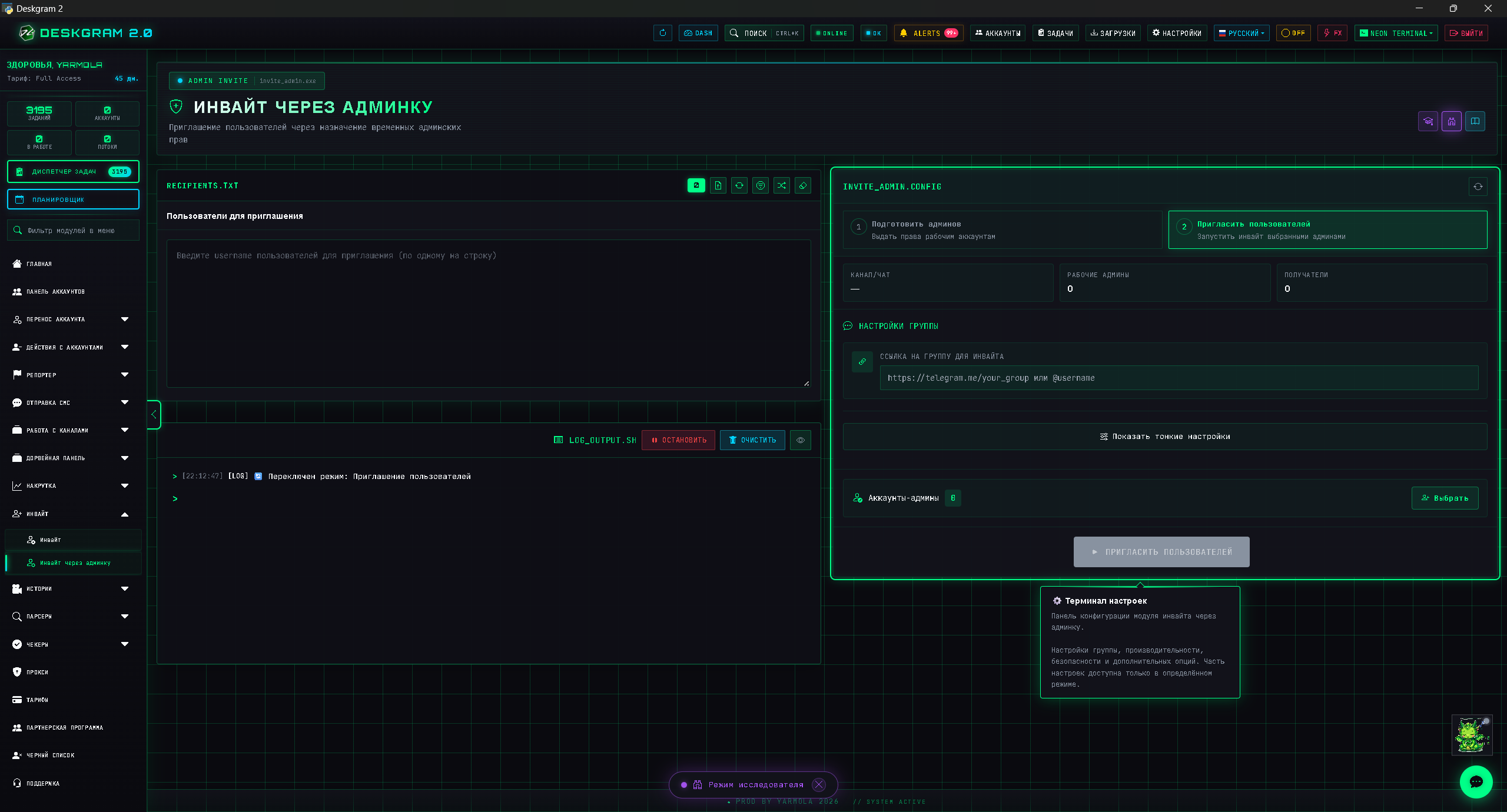
When To Use This Module
Use admin-based inviting when:
- you already control admin accounts for the target community;
- you need a controlled invite workflow;
- limits and delays matter;
- you want to separate admin-based inviting from regular invite campaigns.
If accounts do not have the required permissions yet, configure admin assignment first.
What To Prepare Before Launch
Before starting, prepare:
- the group or channel where users will be invited;
- the user list;
- accounts that will perform the invite actions;
- safe limits and pacing settings.
Do not run a full campaign before checking permissions and doing a small test.
How The Interface Works
The module includes:
- Accounts and Users tabs;
- recipient lists;
- statistics;
- action log;
- limits and safety settings;
- launch controls.
The basic logic is simple:
- Users are the people you invite.
- Accounts are the executors.
- Settings define how fast and under what limits the campaign runs.
Step-By-Step Setup
Step 1. Set The Target Group Or Channel
This is the core point of the whole workflow.
Before launch, check:
- the target is correct;
- selected accounts really have admin permissions;
- you are not mixing test and production communities.
Step 2. Prepare The Users Tab
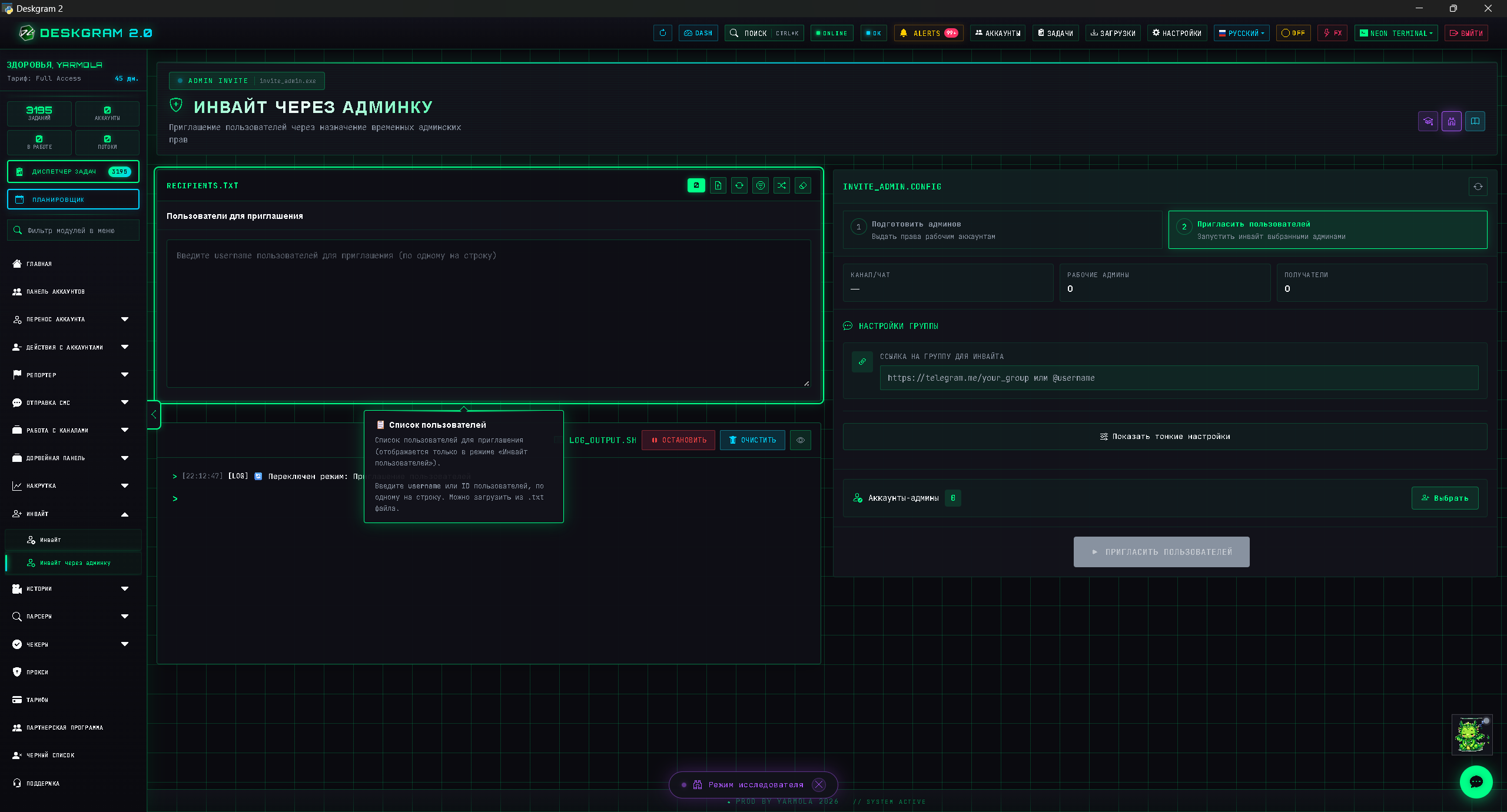
This is where the recipient base is loaded.
Important checks:
- avoid low-quality or random user lists;
- understand where the base came from;
- do not mix very different audience segments in one run.
Step 3. Prepare The Accounts Tab
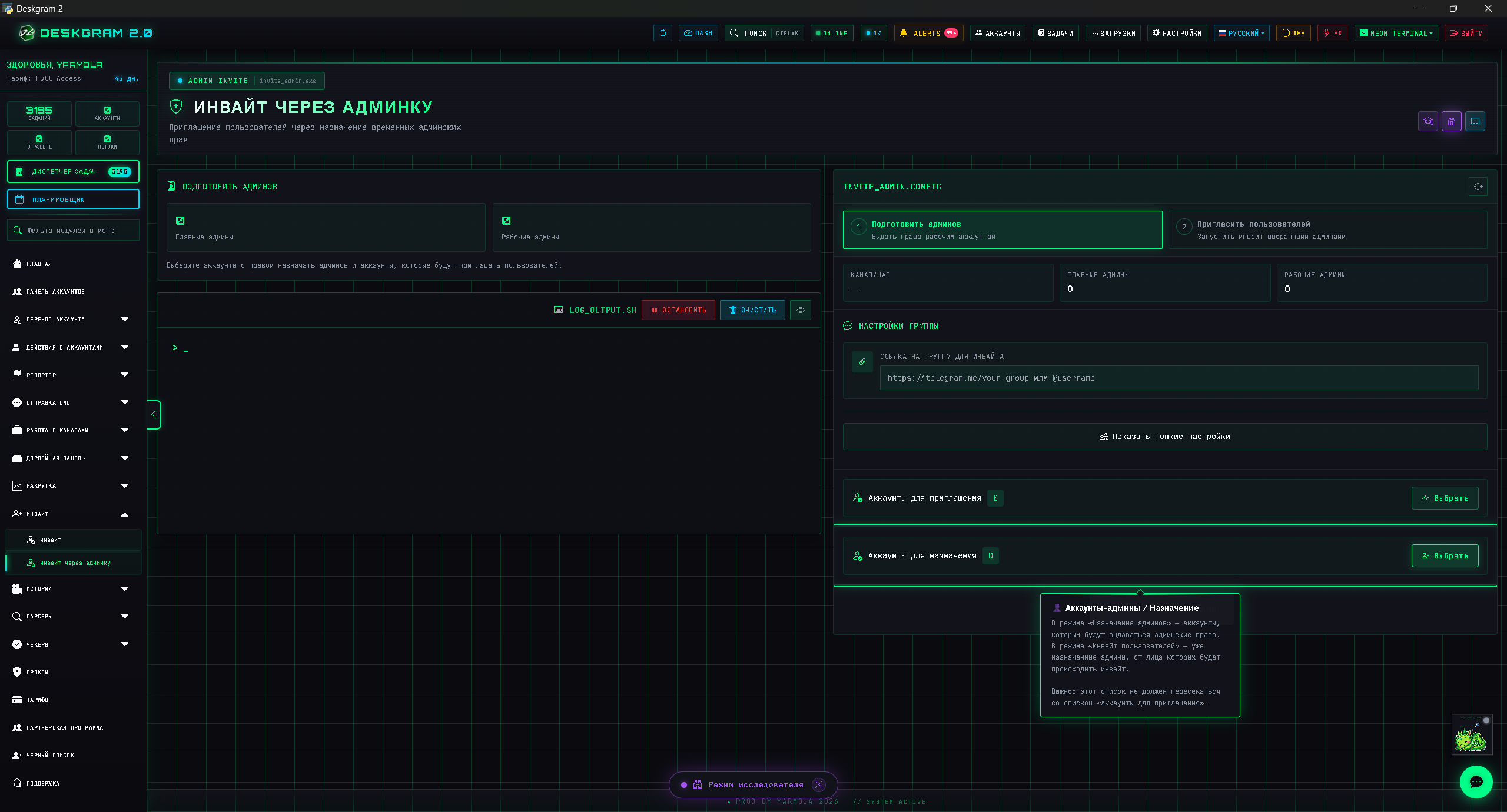
Here you select the accounts that will invite users.
Check:
- whether every account has the required rights;
- whether the planned load is too aggressive;
- whether the account pool is large enough for the selected volume.
Step 4. Configure Limits And Delays
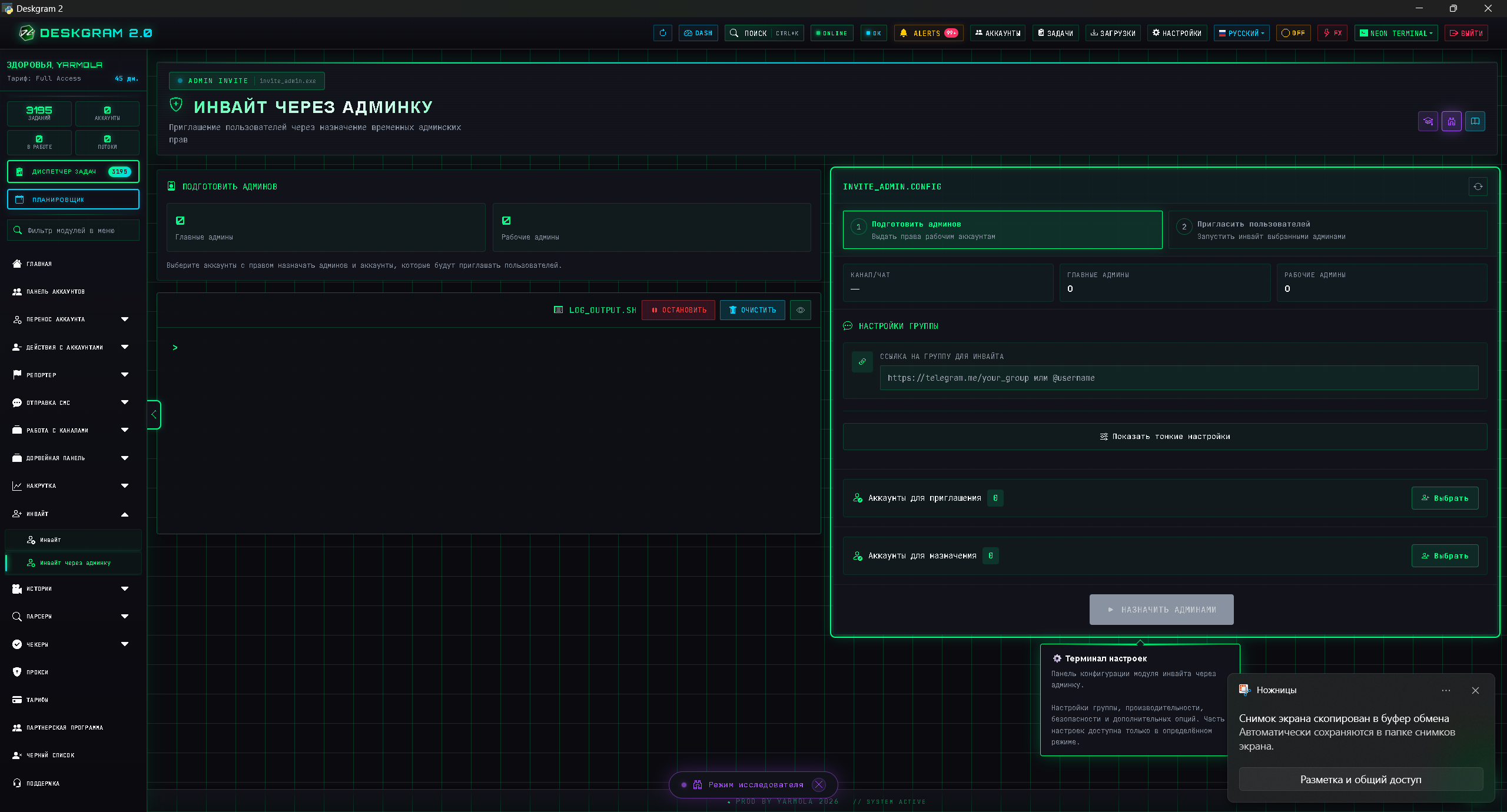
This is the main safety block.
Configure:
- how many users go into work;
- how many threads are used;
- delays between actions;
- account behavior when limits or errors appear.
Admin-based inviting can be sensitive, so start carefully and increase volume only after a clean test run.
Step 5. Watch Statistics And Logs
After launch, monitor:
- how many users were processed;
- whether errors appeared;
- whether specific accounts have issues;
- whether you need to reduce the pace.
What To Check First
- target community;
- user base quality;
- account pool;
- permissions;
- limits;
- delays and rotation.
Common Mistakes
- launching without checking admin permissions;
- using aggressive limits from the first run;
- working with a raw or mixed user base;
- skipping a small test campaign.
Useful Next Pages
FAQ
Does this module replace regular inviting?
No. It is designed specifically for cases where inviting is done through admin permissions.
Should I test on a small base first?
Yes. This is one of the modules where a small test run is strongly recommended before scaling.