Telegram Account Manager in Deskgram 2
This guide explains how to work with the account panel in Deskgram 2: how to add accounts, filter and group them, use account actions, and prepare the account layer for operational Telegram modules.
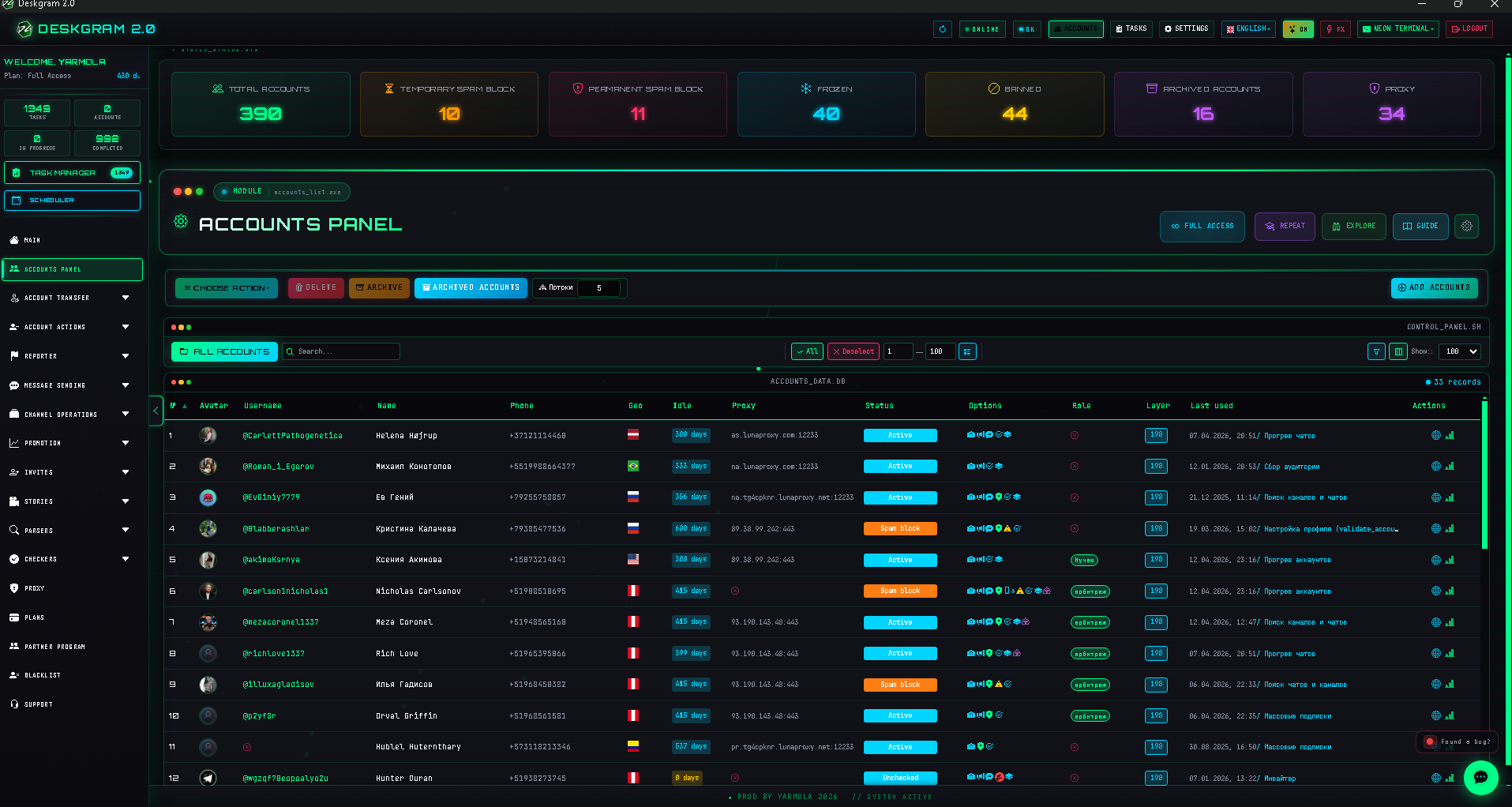
What this section does
The account panel is the base operational layer of Deskgram 2. It stores your accounts, lets you add new ones, filter them by status, run batch actions, and prepare the account base for messaging, parsing, invite, and other Telegram workflows.
What to prepare before you start
- the accounts themselves in the format you plan to use;
- a clear idea of how to segment them: by folder, role, quality, or workflow;
- working proxies if you want to connect infrastructure right away;
- an understanding of which account actions will be regular in your process.
Recommended workflow
1. Add accounts and review the structure
First build the account base and make sure it is displayed in the table the way you expect. At this stage, it is better not to rush into live modules before the structure looks manageable.
2. Review account actions
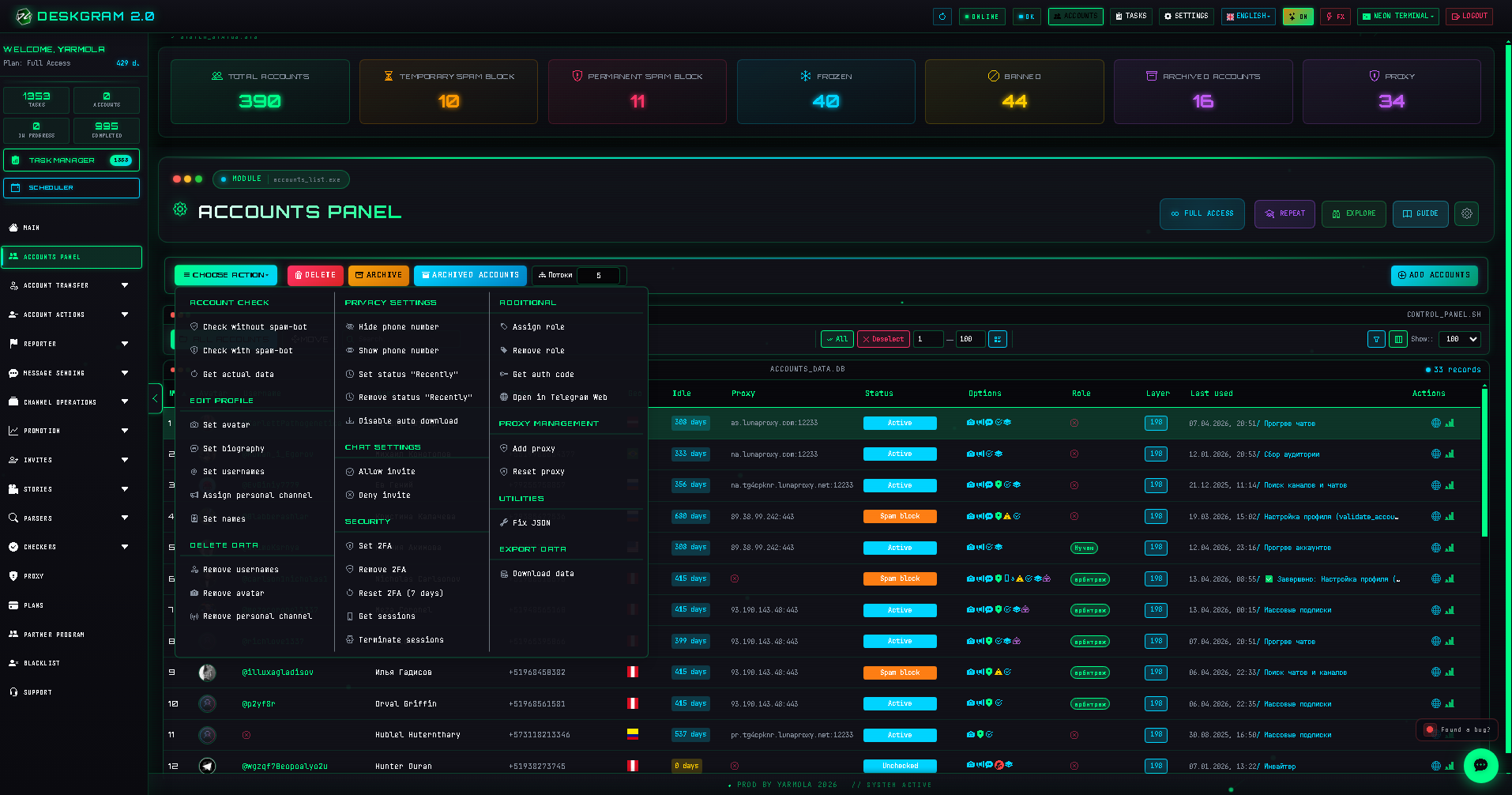
Next, inspect the actions available from the panel: batch operations, delete or archive flow, adding new accounts, and other core operations.
3. Configure filters and working navigation
Once the number of accounts grows, filters, folders, search, and visible columns become more important than the list itself.

Main groups of actions and settings
Account adding
This is the entry point for the whole base. If the adding flow has no structure, later segmentation becomes harder.
Batch actions
This block contains the operations you will use repeatedly: status changes, archive flow, delete flow, and related actions.
Filters and search
This layer helps you find the right accounts quickly and separate working groups from one another.
Account table
The table is not just a list. It is the core operational view of the account base.
What to check first if the panel feels chaotic
- accounts may have been added without a real structure;
- filters and folders may not reflect actual working groups;
- the visible columns may not support real operational decisions;
- the account base may be mixed by quality and role.
Common mistakes
- keeping all accounts in one unstructured pool;
- launching modules before reviewing the quality of the base;
- ignoring filters and trying to manage everything manually;
- not separating accounts by role, quality, and scenario.
What to connect next
- Proxy Manager if you want to build infrastructure right away;
- Deskgram 2 Settings if you are still preparing the whole system;
- Task Manager if you want to see how these accounts take part in live workflows;
- Web preview if you want to inspect the panel before installation.
FAQ
Is the account panel only for storing accounts?
No. It is an operational control layer, not just a storage screen.
When should I clean and structure accounts: before or after launching modules?
Before. The earlier you segment the base by role and quality, the more stable later workflows become.
Can I inspect the interface before installation?
Yes. You can open the web preview and review the panel in the browser.