How to Get a Mistral AI API Key for Deskgram 2
Mistral AI can be used as an AI provider for Deskgram 2 modules that generate comments, messages or replies. This guide shows the basic flow: create an account, open Studio, generate an API key and add it to Deskgram 2.
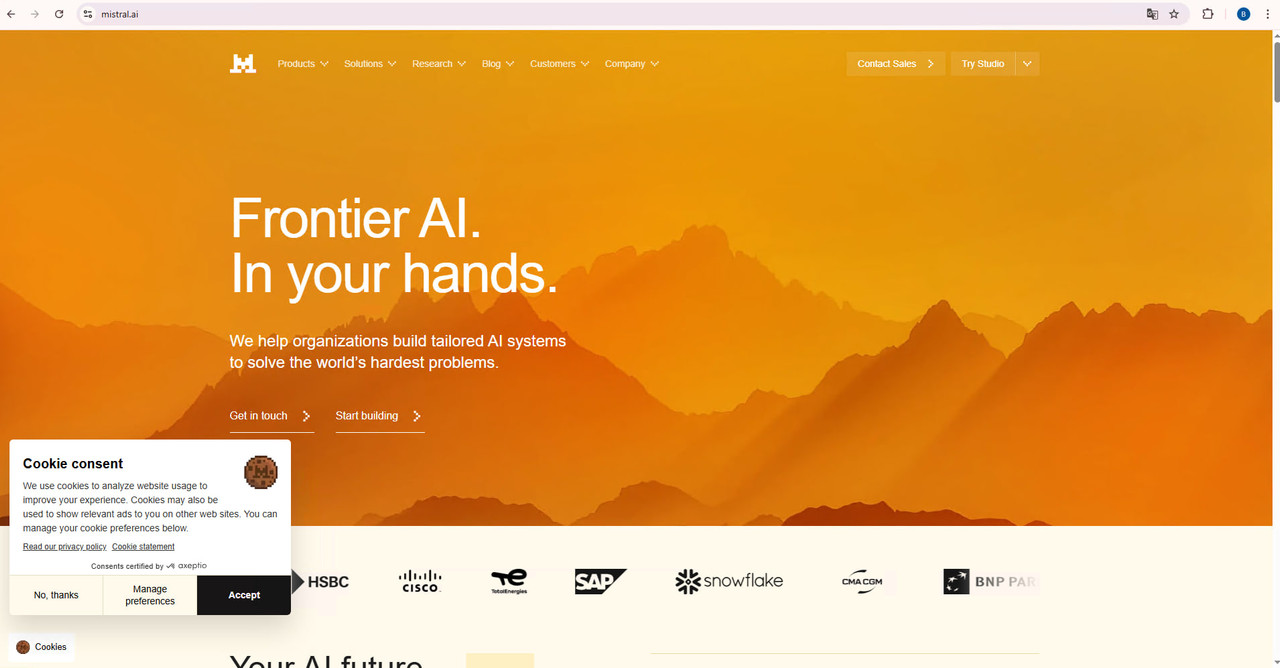
Step 1. Open Mistral AI
Go to the Mistral AI website and open Studio. Create an account or sign in with an existing account.
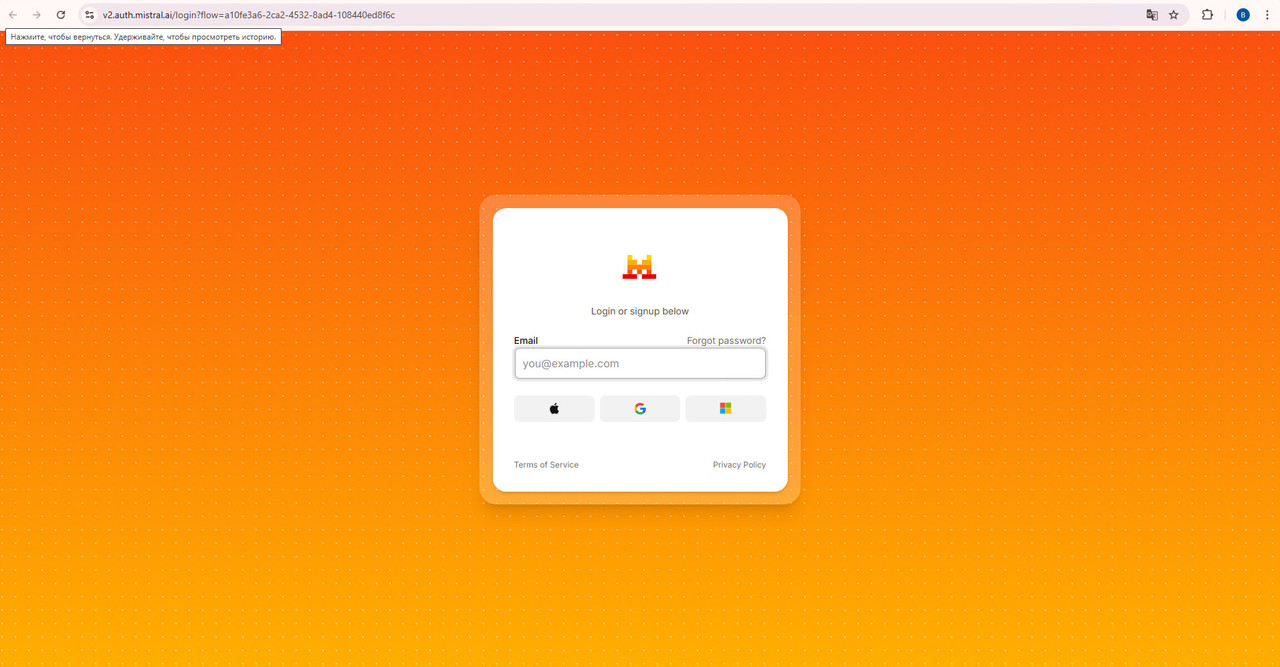
Step 2. Complete account setup
Follow the onboarding steps. Depending on the current Mistral flow, you may need to confirm email, create an organization or complete phone verification.
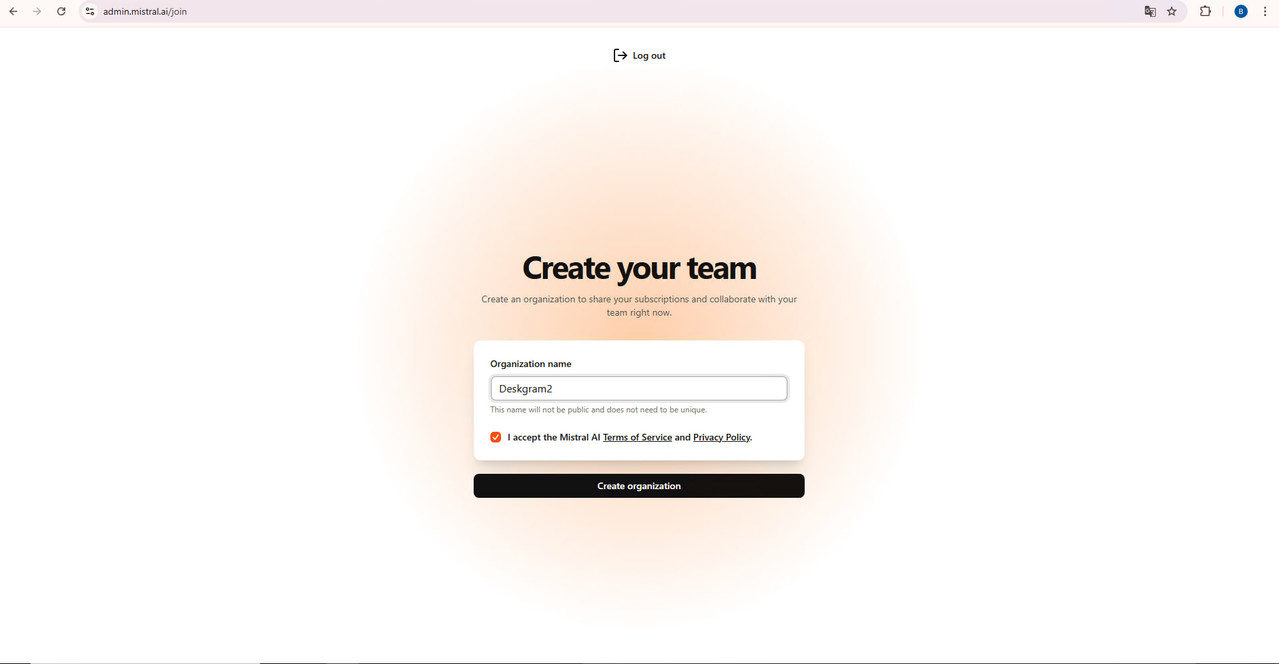
Step 3. Create an API key
Inside Studio, find the API keys section and create a new key. Copy it immediately and store it safely. Do not publish the key in chats, screenshots or public repositories.
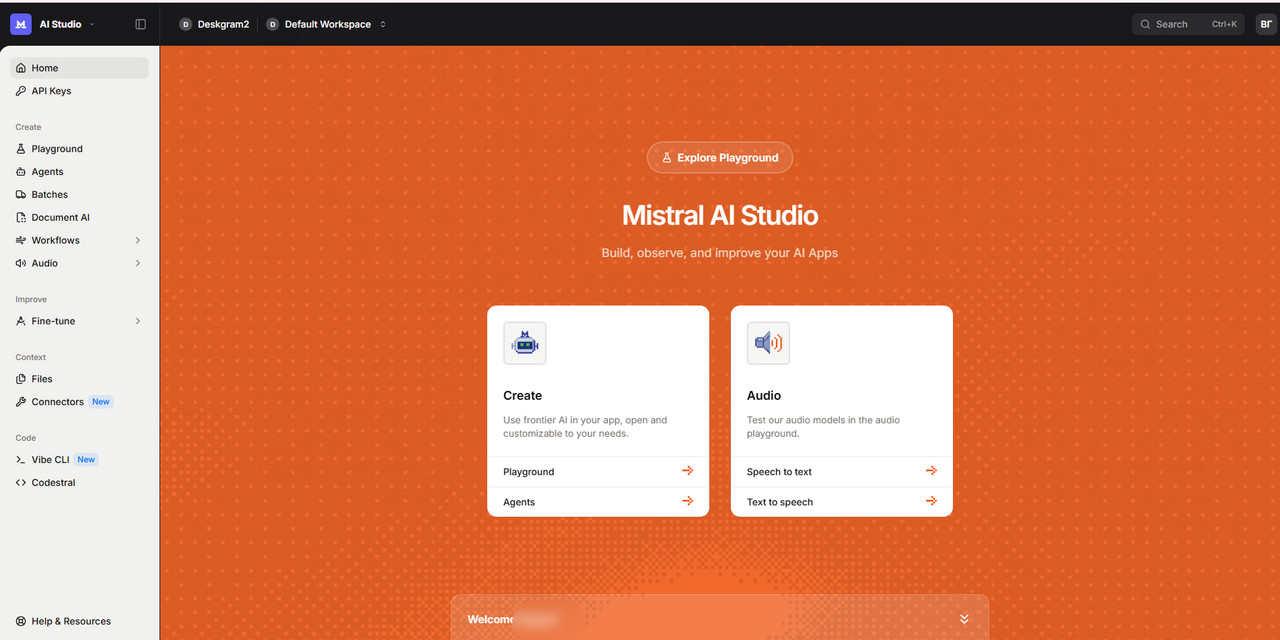
Step 4. Add the key to Deskgram 2
Open Deskgram 2 settings, go to the API section and paste the Mistral key into the matching field. Save settings and test generation in a small AI-enabled module.
Practical tips
- Start with a small test task before launching high-volume AI comments.
- Keep prompts short and specific.
- Check provider limits before scaling.
- Replace exposed API keys immediately.
- Use different prompts for comments, private messages and support replies.
Summary
After the Mistral API key is saved in Deskgram 2, you can select Mistral in AI-enabled modules and use it for Telegram content generation. Test first, then scale gradually.