Deskgram 2 Program Settings Guide
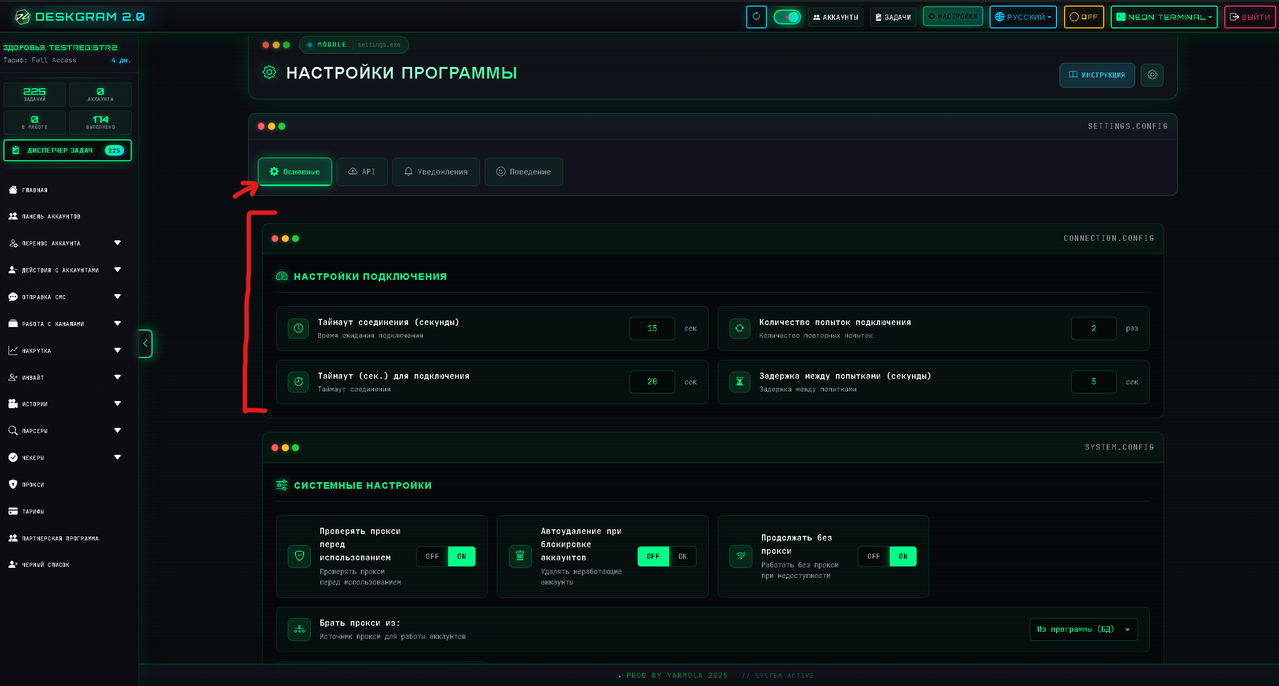
Deskgram 2 settings define how the program connects accounts, checks proxies, handles retries and runs Telegram automation tasks. Good settings make the system more stable and easier to diagnose.
Save Settings After Changes
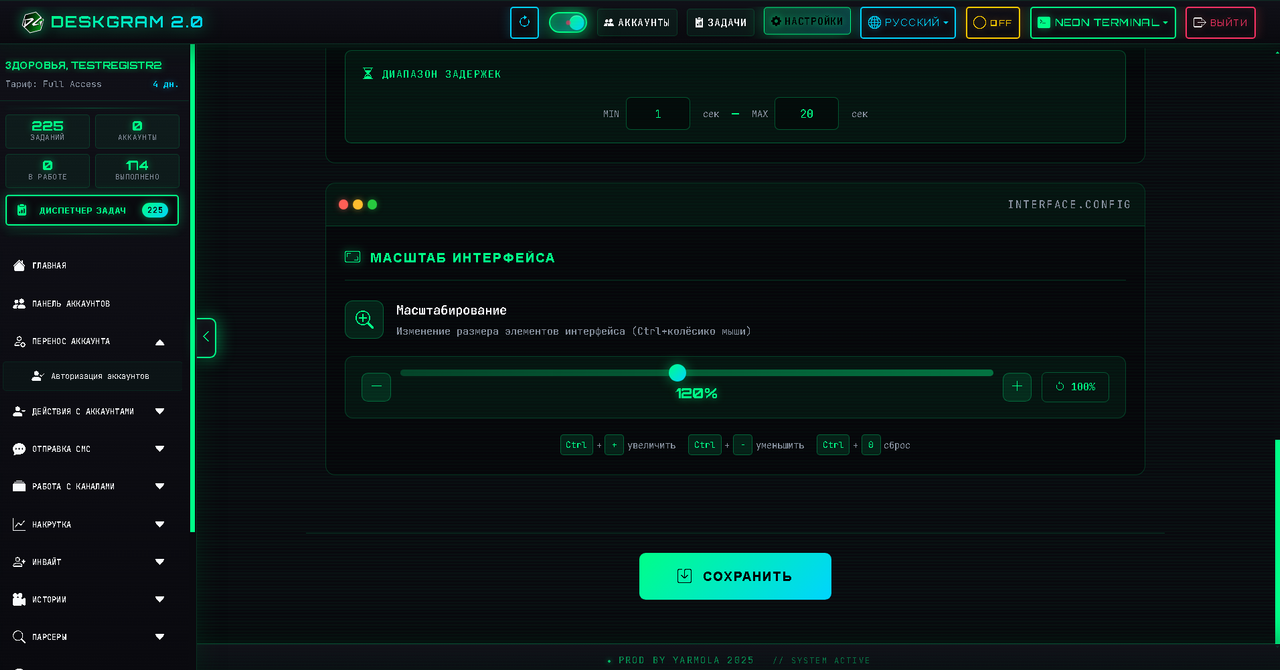
After changing settings, scroll to the bottom of the page and save them. Otherwise, your changes may not be applied to future tasks.
Connection Settings
Connection settings control how long Deskgram 2 waits when connecting accounts and proxies.
Important fields:
- account connection timeout;
- proxy response timeout;
- number of connection attempts;
- delay between retry attempts.
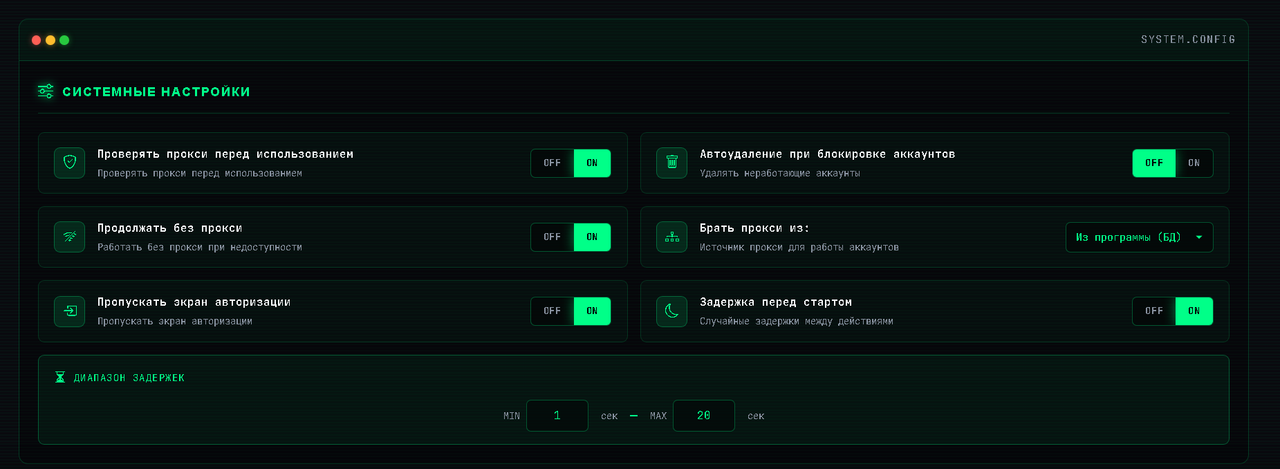
If timeouts are too low, stable accounts may fail on slow proxies. If timeouts are too high, broken accounts can slow down large tasks.
Proxy Checks
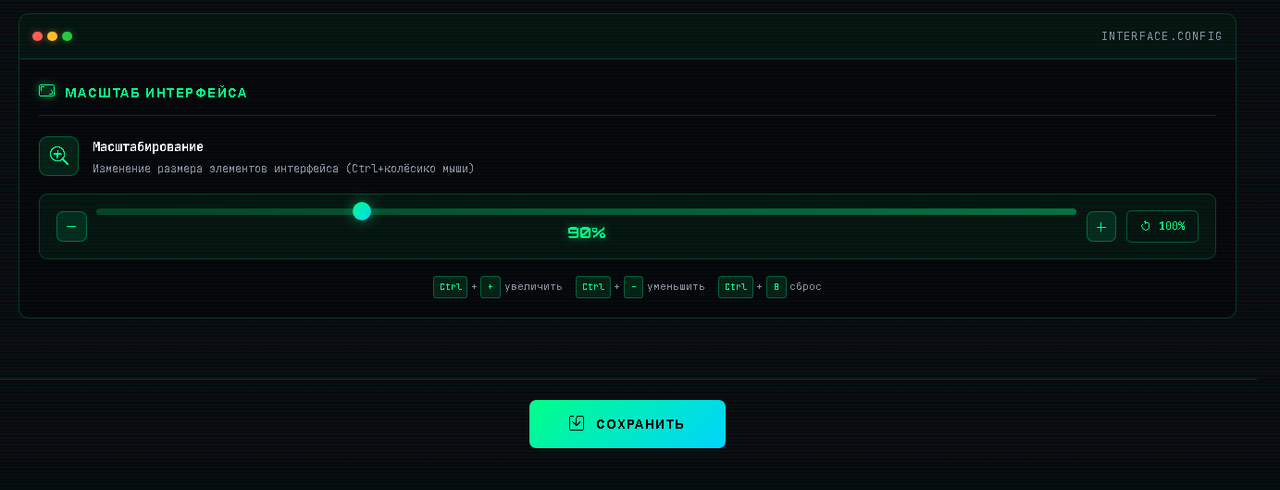
Proxy checking helps detect weak proxies before they break automation tasks.
Recommended approach:
- enable proxy checks for serious work;
- replace unstable proxies instead of retrying forever;
- avoid public proxies;
- keep account-level proxies stable when possible.
Retry and Error Handling
Retries are useful, but too many retries can hide real problems.
Use retries when:
- proxies are sometimes slow;
- Telegram temporarily rejects a request;
- network quality is inconsistent.
Do not use retries to compensate for bad proxies, broken sessions or aggressive task settings.
System Settings
System settings affect how Deskgram 2 behaves during real workflows.
Before scaling:
- test settings on a small account group;
- watch logs and error counters;
- avoid changing many settings at once;
- keep a note of stable configurations.
Recommended Baseline
For most users:
- use stable proxies;
- keep proxy checks enabled;
- use moderate timeouts;
- start with conservative delays;
- increase scale only after successful test runs.
Key Takeaways
- Connection settings affect stability and speed.
- Proxy checks reduce hidden task failures.
- Too many retries can mask bad account or proxy quality.
- Always save settings after changes.
- Test with small groups before scaling.