How to Install Deskgram 2
This guide explains how to install Deskgram 2 on Windows and prepare the program for first launch.
Before You Start
Deskgram 2 is automation software for Telegram, so some antivirus tools may warn about it because it is not a mass-market certified desktop app. If Windows Defender blocks the file, add the Deskgram 2 folder to exclusions after you verify that you downloaded the program from the official site.
Step 1. Download Deskgram 2
Go to the official Deskgram 2 website and download the current installer or launcher.
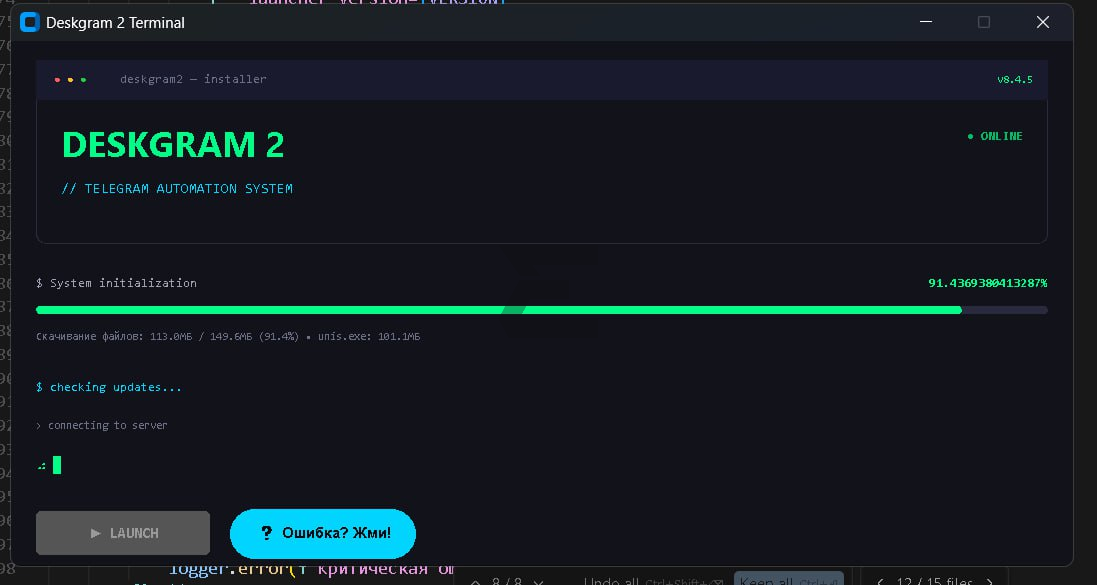
Do not download builds from random mirrors or unofficial Telegram chats.
Step 2. Create a Program Folder
Create a separate folder, for example:
C:\Deskgram2Put the Deskgram 2 executable file into this folder. A separate folder makes updates, logs and antivirus exclusions easier to manage.
Step 3. Run the Program
Launch the executable and wait while the program prepares required files.
If Windows asks for permission, confirm only if the file came from the official source.
Step 4. Sign In or Register
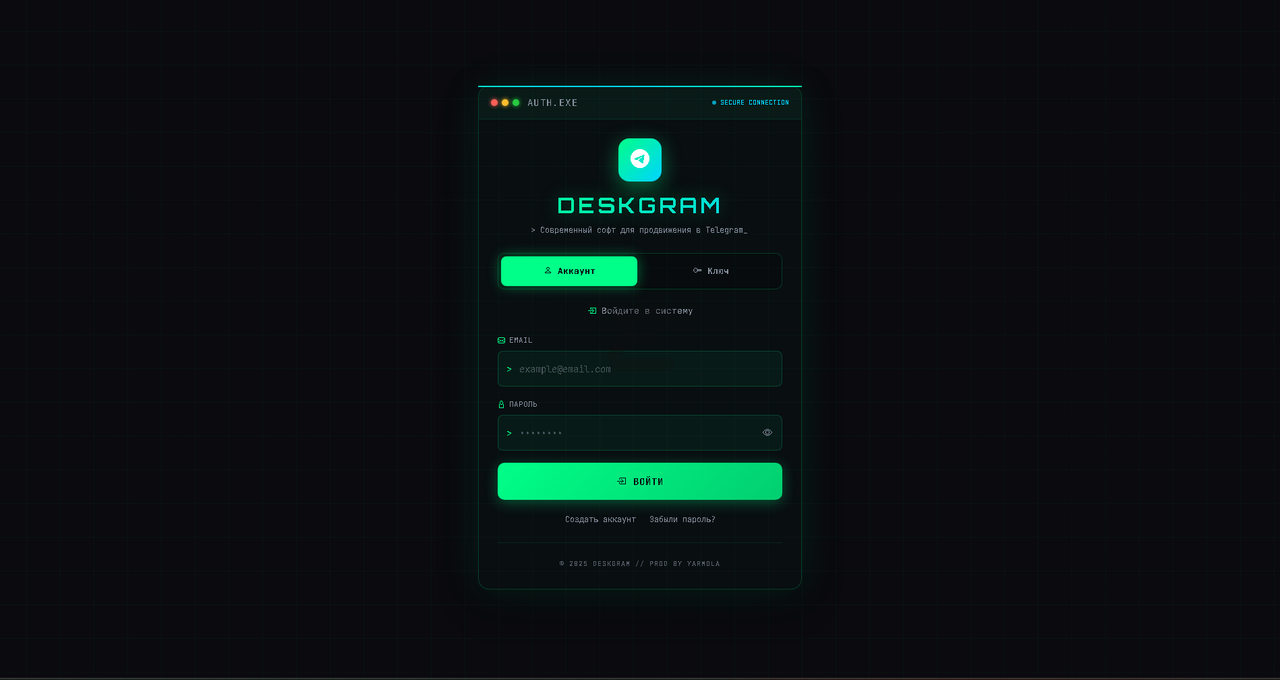
After launch, Deskgram 2 opens the authorization window.
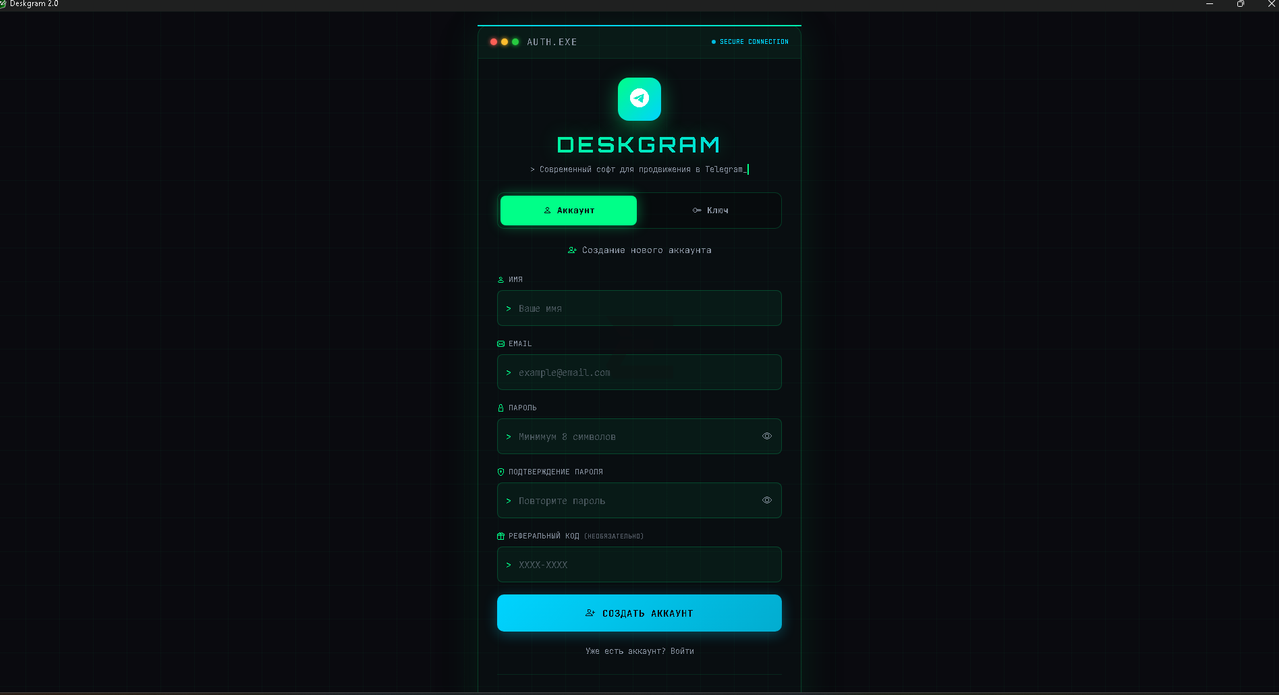
Create an account or sign in with your existing credentials.
Step 5. First Checks
After installation:
- check that the program opens correctly;
- open the account panel;
- configure proxy settings before adding many accounts;
- read the getting started guides before launching large tasks;
- keep enough free disk space for sessions and logs.
If Antivirus Blocks the Program
Add only the Deskgram 2 folder to exclusions, not the whole disk. If you need a detailed walkthrough, use the Windows Defender exclusions guide.
Key Takeaways
- Deskgram 2 runs on Windows.
- Use the official download source.
- Keep the program in a separate folder.
- Add exclusions only if necessary and only for the program folder.
- Sign in first, then configure accounts and proxies.