Creating a Telegram Channel (Your "Storefront")
A channel is your face in Telegram. When a user goes to the profile of your working account, they should see a channel that clearly states your offer and has a link to the bot.
In this guide, we will analyze how to put channel creation on stream using Deskgram 2.
1. Data Preparation: Names and Usernames
If you are making a network of 20–50 accounts, do not try to invent names manually — you will go crazy.
- Names: Ask any neural network (ChatGPT, Claude, etc.) to generate 50 unique names for your offer.
- Usernames (Links):
1. Ask the AI to transliterate these names into Latin for usernames.
2. Use a special bot for checking (link below) to make sure the usernames are free.
3. If a username is taken — just add a number or symbol at the end until you get a free option.
👉 Link to the bot for checking free usernames
2. Setting up the "Create Channels" module
We use the "Create Channels/Chats" module.
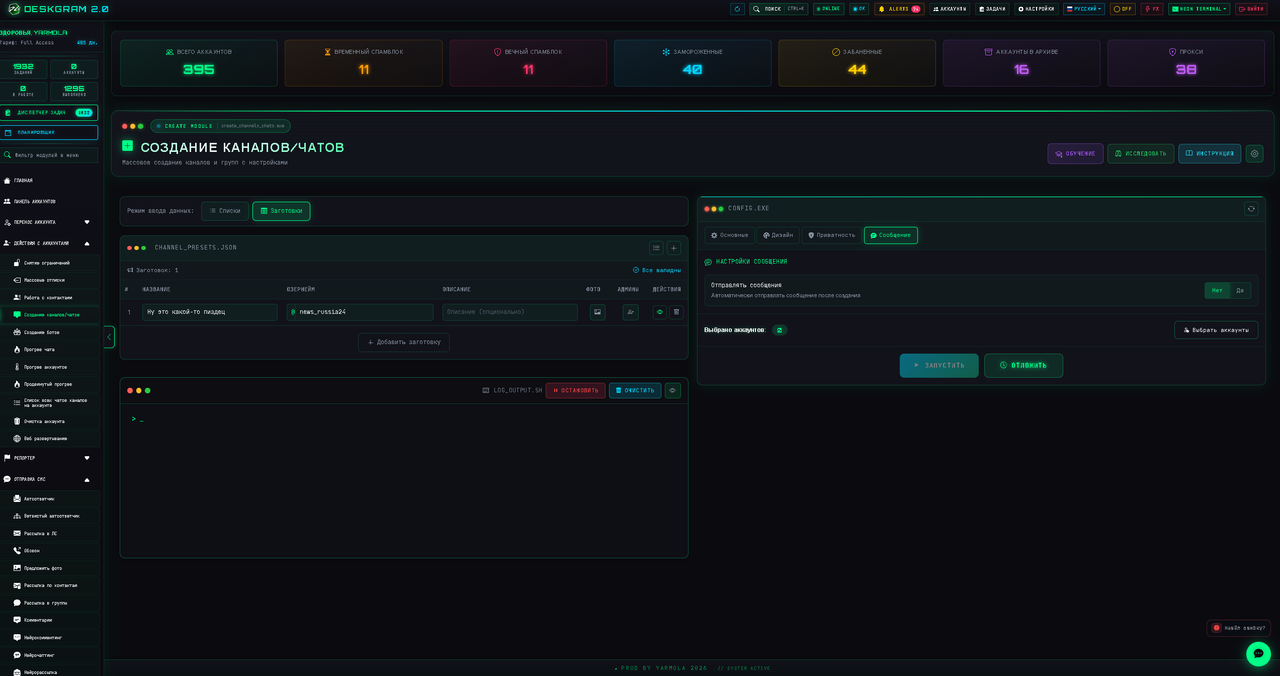
I highly recommend the "Template" mode
Use exactly this mode (it is in the module settings). This guarantees that the avatar, name, and description will perfectly "fit" into each created channel, and no software shifts will occur.
Process settings:
- One channel — one account: Stick to this formula for the purity of the bundle.
- Design: Be sure to upload an avatar, write a username, and a description.
- Additional bot: I strongly recommend that when creating a channel, you immediately add any of your technical bots (a fake one created via BotFather) as an administrator. This is necessary so that in the future you can do mailings to these channels using other modules.
- Security settings: In the channel settings, be sure to disable the ability to leave reactions. Otherwise, your content will very quickly be bombarded with clowns, poop, and other garbage.
- Promotional post: In the "Message" block, immediately set the post that will be published in the channel after creation. This is your "golden" promotional post containing a link to your bot.
👉 Full instruction on the module functionality: Channel Creation Guide
3. Launch Algorithm
Never launch the creation of the entire network of 50 channels at once.
- Test: Launch the creation of one channel for one account. Check the result: did the avatar fit, is the bio correct, are reactions disabled, does the link in the post work.
- Scaling: If everything is perfect — launch the task for the remaining accounts.
Thread settings: I recommend setting 5 threads by default.
Important: In the settings, do not forget to check the box "Add channel to profile". This way Deskgram 2 will automatically add the channel to the account profile.